Prerequisites
Overview
To successfully integrate your Microsoft Azure environment with Upwind, ensure the following prerequisites are met.
Prerequisites
1. Required Tools
Ensure you have the following tools installed:
2. Azure CLI Authentication
Verify that you're authenticated and have access to the correct subscriptions:
az login
az account list
# Ensure the listed subscriptions include those you plan to onboard
3. Check Spot VM Quota
Upwind Cloud Scanners use Spot VMs. Ensure you have a quota of at least 60 vCPUs available for Spot instances:
az vm list-usage --location <region> --query "[?name.value=='lowPriorityCores']" --output table
If your quota is insufficient:
- Go to Azure Portal → Subscriptions → [Your Subscription]
- Click Settings → Usage + quotas
- Locate Spot vCPUs and submit a request to increase the quota
4. Elevate Access to Manage the Tenant Root
To onboard at the tenant or management-group scope, you need visibility and permissions over the tenant root management group. By default, even Global Administrators do not have access to Azure resources at the root scope - you must temporarily elevate access so you can assign roles (for example, Owner over the tenant root or specific management groups) before running Terraform.
Elevated access grants the User Access Administrator role at the root scope (/). This is a temporary permission used to bootstrap the integration. After onboarding completes and the necessary role assignments are in place, revoke elevated access by toggling the same setting back to No.
Steps to elevate access:
-
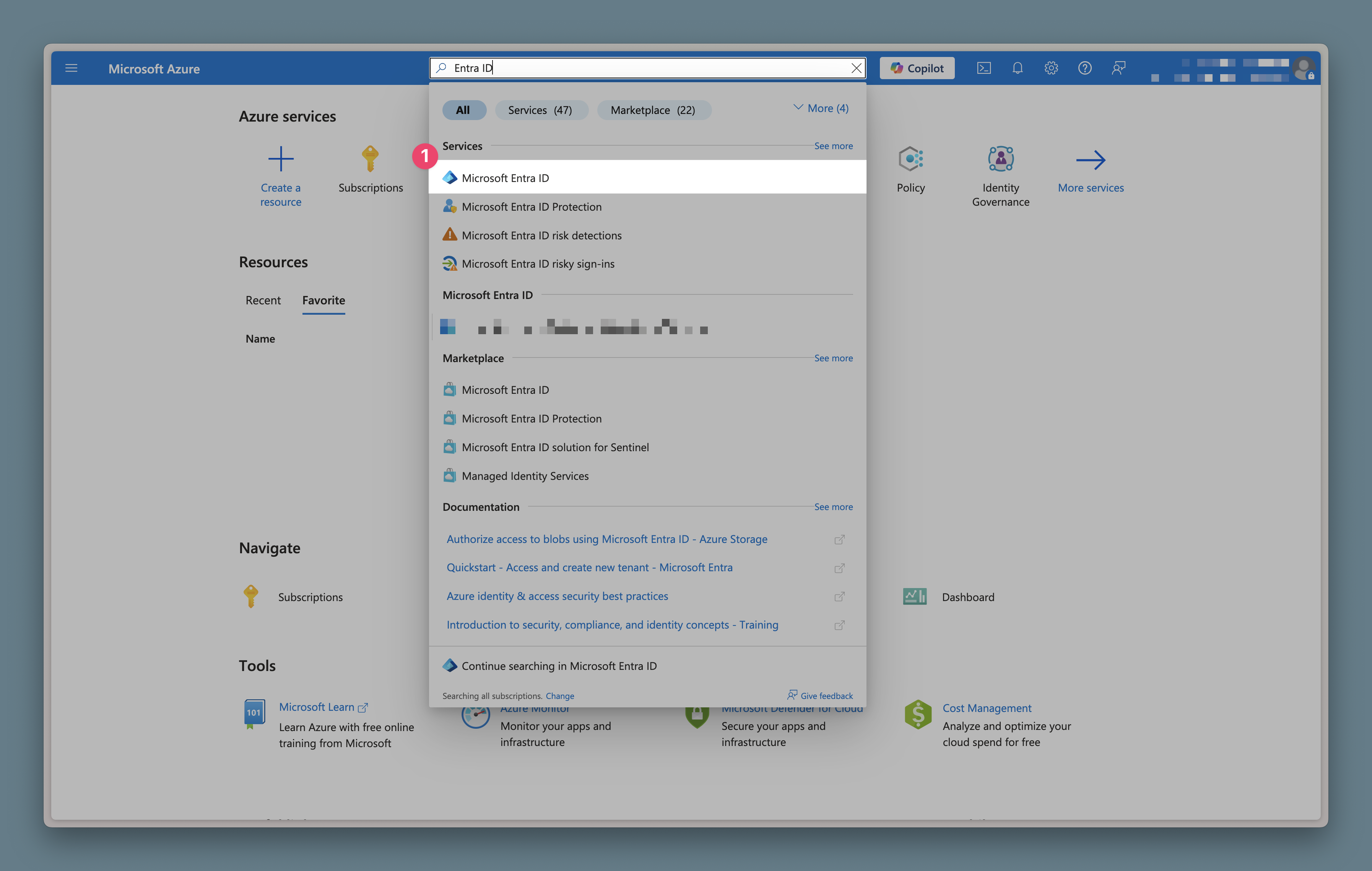
In the Azure portal, search for and open Microsoft Entra ID.
-
In Entra ID, open the Properties tab and toggle Access management for Azure resources to Yes, then click Save.
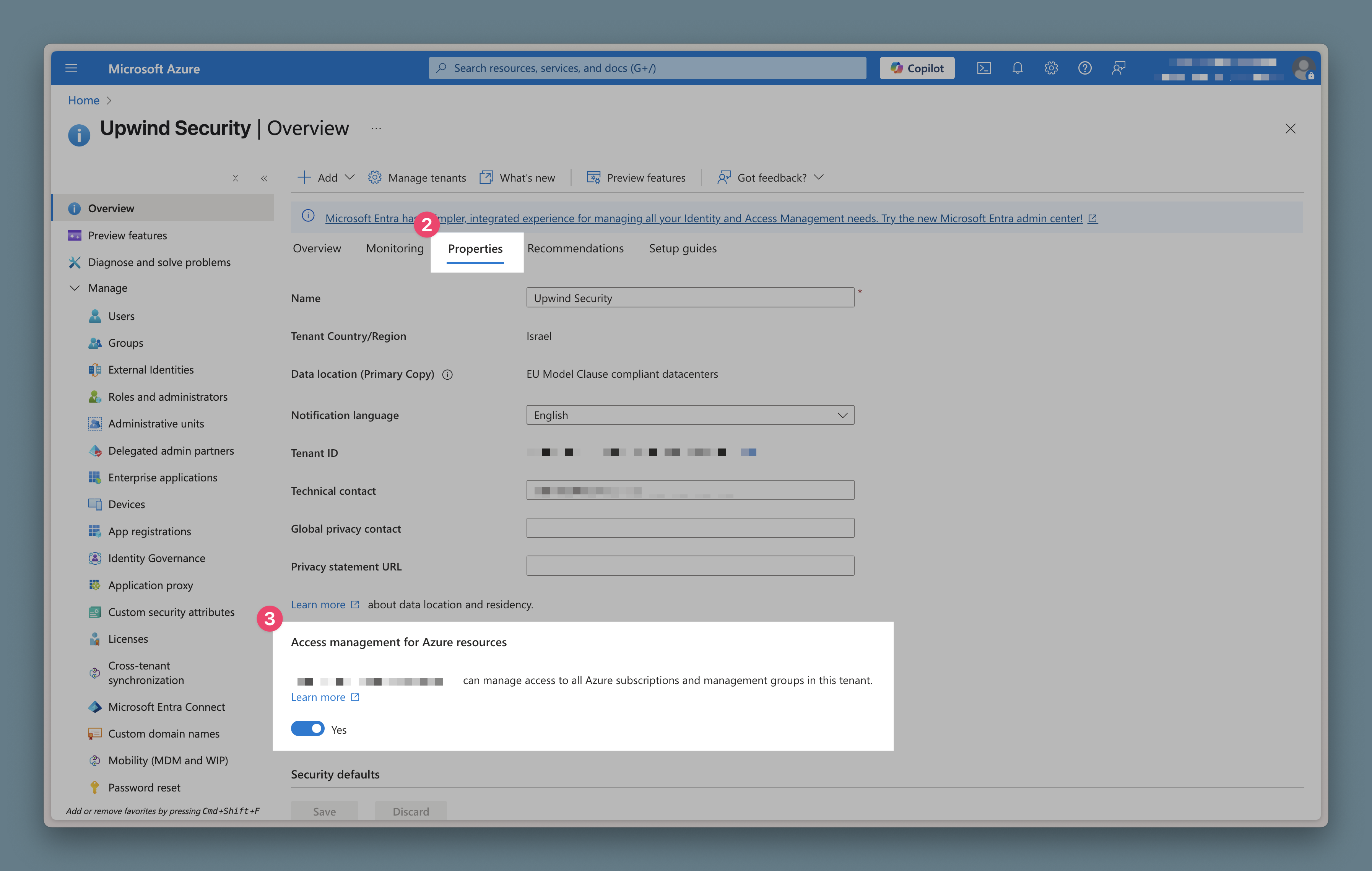
After 1-2 minutes, the root tenant management group becomes visible in the Azure portal under Management groups, and you can assign the roles required for onboarding.
5. Service Principal for the Upwind Application
Upwind's onboarding application is registered as a multi-tenant application in Upwind's own Microsoft Entra tenant. Onboarding does not create an application registration or a client secret in your tenant. Instead, a service principal for Upwind's application must exist in your tenant, and the Azure roles are assigned to that service principal.
This splits cleanly across teams: your Entra administrator provisions the service principal, and your Azure administrator runs the onboarding deployment that assigns its roles. If you hold both sets of privileges, do them in that order.
If the identity running the deployment can create service principals in Microsoft Entra, choose Create a new Fetcher Service Principal during onboarding and skip the rest of this section - the deployment provisions the service principal for you.
What to ask your Entra administrator for
Copy the fetcher_app_client_id value from the Terraform or ARM snippet the console generates in the Assign the required Azure roles step, then send your Entra administrator the following.
| Item | Value |
|---|---|
| Operation | Create a service principal (enterprise application) for an existing multi-tenant application |
| Application (client) ID | The fetcher_app_client_id value from the console |
| Target tenant | Your Microsoft Entra tenant ID |
| Return to you | The Object ID of the created service principal |
Enter the returned Object ID under Use an existing Fetcher Service Principal in the onboarding flow.
The service principal can be created in either of two ways. They differ in the Entra role required and in whether Microsoft Graph consent is included. For background, see Create an enterprise application from a multitenant application .
Option A: Tenant-wide admin consent
Requires the Privileged Role Administrator role. Substitute both values and open the URL in a browser:
https://login.microsoftonline.com/<tenant-id>/adminconsent?client_id=<fetcher-app-client-id>
Accepting creates the service principal in your tenant and grants Upwind's read-only Microsoft Graph permissions in a single step. See Grant tenant-wide admin consent .
Option B: Create the service principal only
Requires Cloud Application Administrator or Application Administrator. Neither role can consent to Microsoft Graph application permissions, so use this option when tenant-wide consent needs separate approval, and have that consent granted afterwards.
az ad sp create --id <fetcher-app-client-id>
az ad sp show --id <fetcher-app-client-id> --query id -o tsv
The second command returns the Object ID to hand back.
Microsoft Graph permissions requested
Upwind uses these to map identities, groups, and policies for identity posture. All are read-only.
| Permission | Purpose |
|---|---|
User.Read.All | Read user profiles in the directory. |
Group.Read.All | Read groups and group memberships. |
RoleManagement.Read.All | Read directory role and RBAC assignments. |
Directory.Read.All | Read general directory data. |
Policy.Read.All | Read conditional access and other directory policies. |
UserAuthenticationMethod.Read.All | Read users' registered authentication methods, such as MFA state. |
Classic Onboarding creates an application registration and client secret in your own tenant. Its App Registration prerequisites are documented on that page.
Troubleshooting
If you encounter issues during deployment or operation, consult the Troubleshooting guide for solutions and best practices.