Integration (Outpost)
Overview
This article outlines the steps to integrate your AWS Organization and its member accounts with Upwind using the Outpost deployment model. With Outpost, Cloud Scanners are deployed and run within your own AWS environment.
For the SaaS deployment model - where Upwind hosts and manages the Cloud Scanner infrastructure on its own AWS organization - see the SaaS onboarding flow.
If you select Switch to classic onboarding in the first step of the flow, follow Classic Onboarding instead. Classic onboarding supports both AWS organizations and single AWS accounts, and does not require an AWS root account for single accounts.
Already an Upwind customer using the legacy 3-stack model? If you're interested in migrating to the new organizational onboarding experience, you can skip ahead to the relevant article, Migration.
The goal of the onboarding process is to create the IAM roles and policies necessary to connect to the accounts within the AWS organization, so that the necessary security auditing functions can be performed.
Using a Delegated Admin account
A delegated admin account may be used as an alternative to using the AWS management account. When using a delegated admin account, the account must be configured as follows:
- with permissions to retrieve the organization account structure (see Enable a delegated admin account for AWS Account Management for further details),
- as a CloudFormation registered delegated admin account (if using Cloudformation) (see Activate trusted access for StackSets with AWS Organizations for further details).
The delegated admin account can be regarded as the management account, for the purposes of this document, and is used as follows:
- Will be used for organization account discovery, using the Org discovery role which will be created using either Cloudformation or Terraform.
- If using Cloudformation, will be the account in which the initial Stack and StackSet shall be deployed into. This approach uses a SERVICE_MANAGED StackSet to deploy roles in other member accounts.
If using a delegate admin account, verify you can view the organizations and accounts. From the terminal in the account (eg AWS Console Web Shell)run the following:
Retrieve Organization ID
aws organizations describe-organization --query "Organization.Id" --output text
Retrieve Organization Root OU
aws organizations list-roots --query "Roots[0].Id" --output text
Retrieve OUs in Org Root
aws organizations list-organizational-units-for-parent --parent-id <ROOTID> --query "OrganizationalUnits[*].{Name:Name, Id:Id}" --output table
Retrieve Accounts in Org Root ID
aws organizations list-accounts-for-parent --parent-id <ROOTID> --query "Accounts[]" --output table
If you encounter permissions errors, it indicates that the account has insufficient permissions and cannot be used for Organization account discovery.
Account Selection & Filtering (Cloudformation only)
Several options can be used to configure the Cloudformation StackSet to limit the accounts to which the roles are applied.
The Terraform is intended to be applied to each account, hence the IAC deploying the module can implement filtering by applying the module to only the necessary accounts.
Organization Unit Ids (OU)
The Organization Unit IDs parameter can be used to provide a comma separated list of Organization Units (OU) from which the accounts to be "onboarded" will be derived.
The recommended approach is to use the root OU which means the roles will be applied to all accounts in the organization. Providing an individual OU or a list of OUs allows the accounts to be onboarded to be limited to the accounts in the selected OUs.
Target Account filtering
In addition to OU filtering, it is possible to configure the StackSet to target specific account Ids. This is applied to list of accounts derived from the configured OUs, and supports two options:
- INTERSECTION: This is an intersection of the accounts matching the OU filter and the target account list. The roles will be applied to accounts in both lists. This is useful if only specific accounts in select OUs are to be onboarded, but it has the unintentional side affect of inhibiting the auto enrolment functionality of the StackSet, as the target account list effectively becomes a whitelist of accounts.
- DIFFERENCE: This filter is the result of the accounts from the OU filter, but excludes the accounts in the target list. This is a good way of excluding specific accounts, and allows the roles to be applied to new accounts as they are created.
The target accounts can be configured as a comma separated list of accounts. The list must consist of valid accounts which already exist in the AWS organization being onboarded, otherwise the StackSet operation will fail.
Tags
Tags can be used for resource usage accounting or as part of a tagged based access control along with SCPs. To support either use case, tags can be configured as follows:
AWS reserved tags, eg those prefixed with aws: cannot be used.
See Tag Restrictions for further AWS tag restrictions.
Onboarding resources
The resources created during onboarding can be tagged during the onboarding process, and this includes roles, policies, secrets manager secrets and where applicable Cloudformation stacks. How the tags are configured varies based on the chosen onboarding methodology:
- CloudFormation: added to the stack when deploying the roles. The tags will be applied to the stack, and nested stack and all resources created in each account being onboarded. This is supported through the AWS Console and the tags can be altered after the onboarding has completed.
- Terraform: tags can be added using a
custom_tagsproperty in the Terraform template. The tags can be altered after onboarding, but the Terraform will need re-applied in each account.
Cloud Scanner Resource Tags
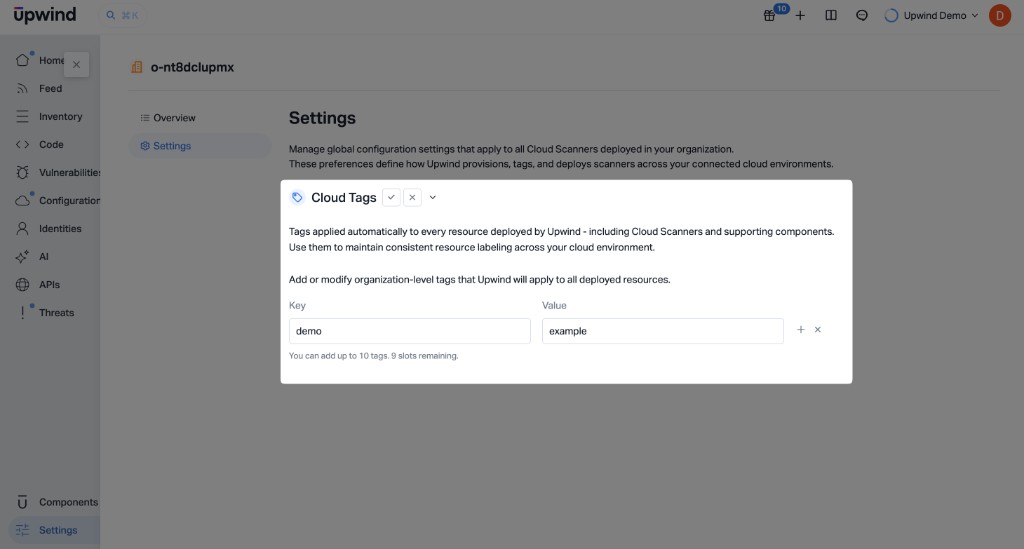
Organization-level custom tags are optional key-value pairs that Upwind applies automatically to resources it deploys in your AWS organization. That includes onboarding assets, Cloud Scanners, and supporting components (for example compute, storage, and snapshots). Consistent labeling makes it easier to identify Upwind-managed resources in your cloud consoles, cost and chargeback reports, and tag-based policies such as SCP conditions.
The same custom tags controls are available for both CloudFormation and Terraform organization onboarding.
During onboarding, you set these tags during Step 2 under Define scanner settings (Optional) by enabling custom tags and entering up to ten pairs, regardless of which IaC method you use for IAM roles.
After onboarding, you can change the same tags from the Organizations and accounts page under Inventory. Open the organization in the side pane, select the Settings tab, then click the pencil (edit) control for Cloud Tags. Values are stored in Upwind per AWS organization and take effect when Cloud Scanner-related resources are updated.
If tags are required to grant exceptions on Service Control Policies (SCPs), it is recommended that these are configured during the onboarding as this provides a more seamless onboarding experience.
If necessary, they can be omitted, and as a result the Cloud Scanners may fail to deploy correctly. However, these can be resolved quite easily later by applying the tags on the Organizations and accounts page.
Similarly, since changes to the tags shall be applied to the Cloud Scanners, removing tags which are required by an SCP may cause the Cloud Scanner to fail.
To change or set new tags after the onboarding is done, navigate to the Organizations and accounts page, click on your organization, switch to the Settings tab, then click on the pencil icon next to Custom tags.
Omitting EC2 Network policies
By default, EC2 network permissions are granted to the Account Service role in the orchestrator account, where they are used to create and manage resources such as VPCs, subnet, NAT gateways etc (components of the default network stack created when deploying a Cloud Scanner). However, as an option, a customer provided network configuration can be provided instead. As a result it may not be necessary to create these additional permissions. This is available through the "Use Existing Network Resource" toggle during the onboarding process.
If the intent is to provide your own network configuration for each Cloud Scanner in all regions, then it is recommended that you exclude the EC2 Network permissions from the role as they are not required. If you remove these permissions, Cloud Scanners will no longer be deployed. Instead, a Cloud Scanner configuration will be created in each region where there are scannable targets, but will be left in the REQUIRES_NETWORK state. This is a specific state indicating the that the Cloud Scanner has not be deployed as it requires a network configuration.
Once configured, the Cloud Scanner will be deployed. A minimum / recommended configuration is as follows:
- a VPC in the same region
- at least two subnets attached to the VPC in 2 different availability zones.
- traffic must be routable to the internet - either directly or through a proxy
The EC2 network permissions should only be disabled if you intended to provide a network configuration in all regions - rather than use the configuration created when deploying the Cloud Scanner.
If you are unsure, it is recommended that you leave this option enabled - it can be disabled later. However before disabling, it is important to ensure that all Cloud Scanners in the AWS organization have been configured with customer provided network configurations. Otherwise they can not longer be managed by Upwind, and may need to be removed manually.
Integration steps
The integration of the AWS Organization consists of three steps:
- Step 1: Selecting the AWS Organization and an Orchestrator account.
- Step 2: Creating the Roles and permissions in selected accounts.
- Step 3: Defining which accounts you want Upwind to scan.
-
Log in to the Upwind Management Console .
-
Select the + (plus) symbol at the top of the screen and select Connect cloud account.
-
Choose Amazon Web Services, then under Select the type of AWS entity you want to connect choose either Connect AWS organization or Connect AWS account.
-
Under Cloud Scanners Setup, select Outpost, then follow the detailed steps corresponding to your chosen entity type and deployment method.
- Connect AWS organization
- Connect AWS account
- AWS CloudFormation
- Terraform
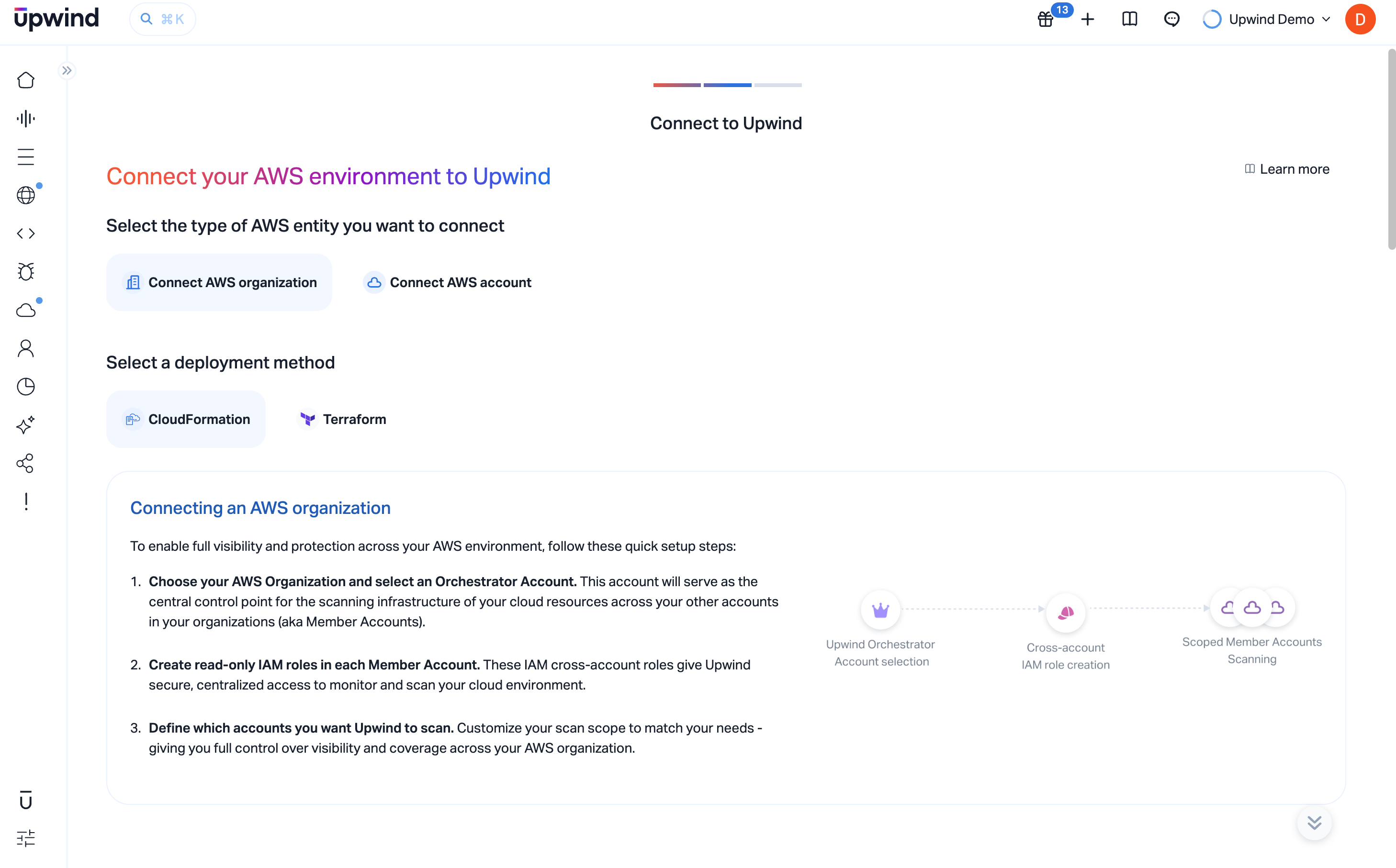
When using CloudFormation, you will deploy a CloudFormation Stack which uses a StackSet to create the necessary permissions in all of the accounts within the AWS Organization. Optionally, it will deploy the same stack in the management account if desired.
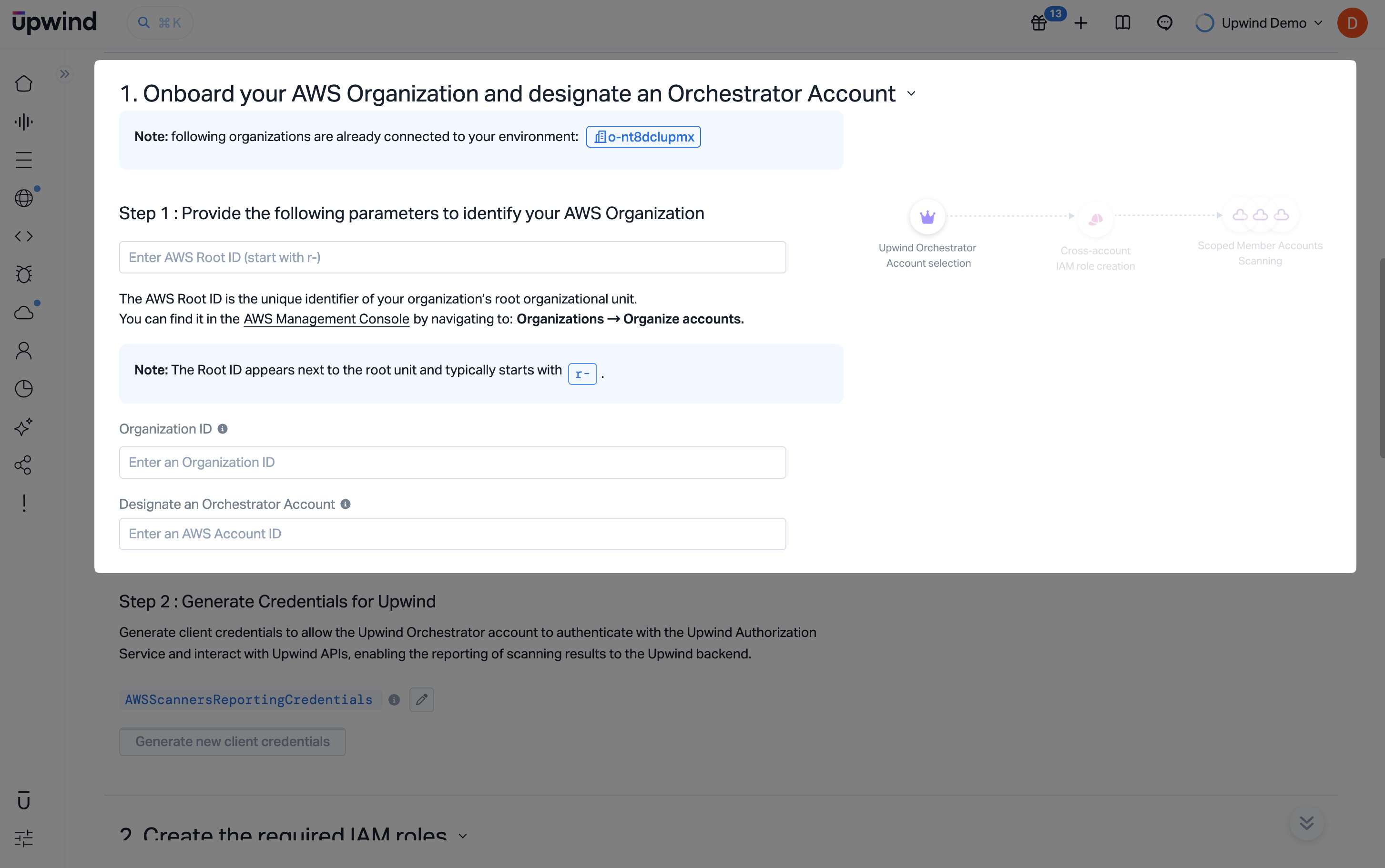
Step 1: Onboard your AWS Organization and designate an Orchestrator Account
In this step, you'll provide basic information to allow Upwind to identify and connect to your AWS Organization.
Step 1.1: Provide the parameters to identify your AWS Organization
- Sign in to the AWS Management Console of your management account.
- Navigate to Organizations → Organize accounts.
- Copy your Root ID – this is the unique identifier for your root organizational unit and typically begins with
r-. Also copy the AWS organization id - typically this beginso-. - Paste the Root ID into the field labeled Enter AWS Root ID. Also past the AWS organization id into the field labeled Organization ID
Designate an Orchestrator Account
-
Enter the AWS Account ID you want to use as the Orchestrator Account. This account will be responsible for creating and managing the scanning resources on behalf of your organization. The orchestrator should have sufficient permissions to assume roles across your accounts and initiate scans.
noteThe orchestrator account must belong to the same AWS Organization and have permissions to assume roles in the other accounts. This does not have to be the management account.
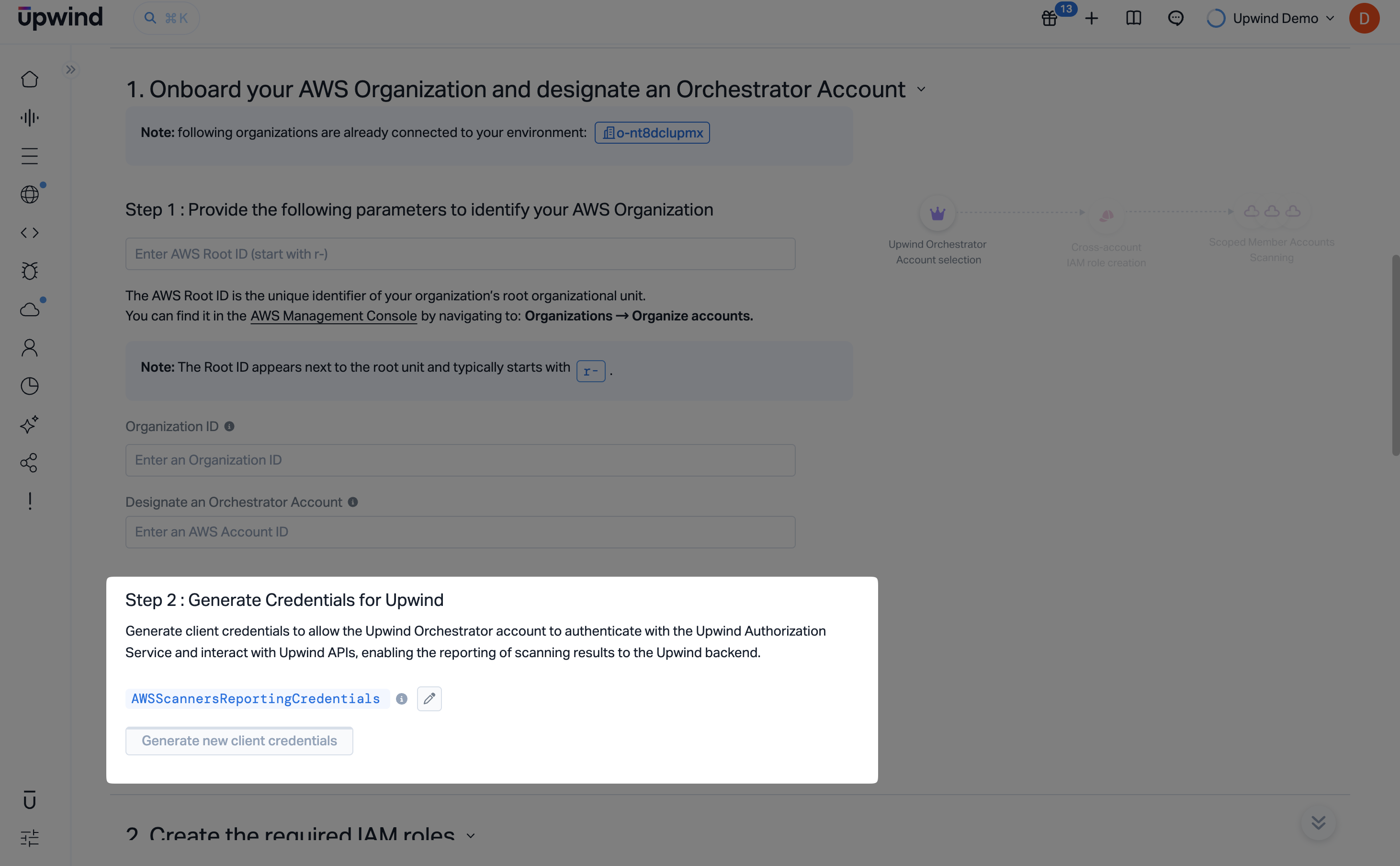
Step 1.2: Generate Credentials for Upwind
Once your organization and orchestrator account are defined, you will generate the credentials required for authentication.
- Click Generate new client credentials to create a unique credential set for Upwind.
- These credentials are used by the orchestrator account to interact with the Upwind Authorization Service and APIs securely.
- You can optionally customize the name of the credentials under the
AWSOrganizationConnectionCredentialslabel.
These credentials will enable secure communication and reporting between your AWS environment and the Upwind platform.
Step 2: Create the required IAM roles
In this step, you can provide the organization specific configuration, which includes the following options, before connecting to your AWS management account to apply the CloudFormation which will create the roles.
- Option which will exclude the EC2 management permissions, if you intend to use your own network configurations
- Optional custom tags for all Upwind-deployed resources (configured under
Define scanner settings)
Upwind requires cross-account access to scan and protect all accounts under your AWS Organization. This step ensures that the correct IAM roles are provisioned in all accounts.
Step 2.1: Log in to your AWS Management Account
- Sign in to the AWS Management Console of your management account.
infoMake sure you are logged into the AWS Management Account of your organization and have selected the region where you intend to deploy the CloudFormation stacks.
Step 2.2: Create cross-account IAM roles
Before deploying the IAM roles, you can make some additional Cloud Scanners settings to your deployment:
- First, expand
Define scanner settings. You can configure:- Use Existing Network Resources - if you will supply network configuration for Cloud Scanners in all regions, set this to Yes so the template omits EC2 network-management permissions that Upwind would otherwise need to create VPC resources.
- Custom Tags - enable the toggle, then add up to ten key-value pairs. These organization-level tags are applied automatically to every resource Upwind deploys (including what is created during onboarding and later Cloud Scanner infrastructure), so you can recognize and organize Upwind-managed resources alongside your own tagging standards.
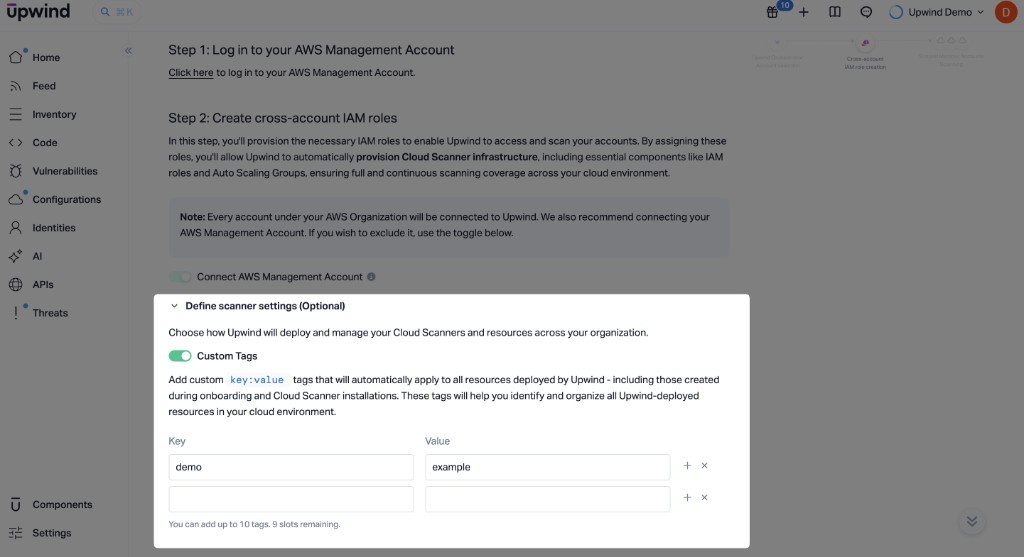 Cloud Scanner Settings
The Use Existing Network Resources choice is passed into the CloudFormation stack parameters. Custom Tags are stored in Upwind per AWS organization and apply to Upwind-deployed resources the same way for CloudFormation and Terraform onboarding.
-
Then, deploy the Upwind CloudFormation stack to automatically create the IAM roles needed for scanning and orchestration across your organization.
-
Use the toggle to choose whether to include your AWS Management Account in the onboarding process. When enabled, the CloudFormation template will deploy the necessary IAM roles to the management account, allowing Upwind to scan and monitor it as part of your organization.
noteAll member accounts in your AWS Organization will be connected to Upwind by default. Including the management account is recommended for full visibility. If you prefer to exclude it, simply disable the toggle before proceeding.
-
Click the Run the AWS CloudFormation template link to open a pre-configured CloudFormation Quick Create Stack in a new browser tab. There is no need to manually fill in any of the parameters- all fields are automatically pre-populated based on the information you entered in the previous steps.
If you'd like to override any of the default values, you may do so on the stack creation page. The following section provides a detailed explanation of each parameter.
infoPlease review carefully and adjust as needed to fit your specific environment. Variables are explained under Glossary.
Onboarding Resource TagsTags to be applied to the onboarding resources (eg CloudFormation stacks and roles) can be added to the Cloudformation Stack configuration during this step.
- Check the Capabilities section and acknowledge that the template may create IAM resources.
- Click Create stack and wait for the stack to complete. For an AWS Organization with a few hundred accounts, this can take several minutes to complete.
Step 2.3: Enter the required Role ARN from your CloudFormation stack
- Once complete, retrieve the ARN of the Organization discovery from from the AWS Console. It can either be retrieved from the resource or output tabs of the CloudFormation Stack just installed.
- Enter the ARN in to the Upwind Management Console, and Click Validate to ensure that Upwind can securely access your AWS Organization.
Step 3: Define Account Scope
The final step of the onboarding process allows you to define the scope for each AWS account you've just connected - as well as for any new accounts that may be created in the future under your AWS Organization.
The Account Scopes can be modified later in the Organizations and accounts page.
-
This view displays your AWS Organization structure and all linked accounts, allowing you to choose which accounts should be audited using Cloud APIs or scanned using Upwind Cloud Scanners.
-
Enable
Cloud APIto grant Upwind access to read metadata and perform auditing across the account. -
Enable
Cloud Scannerto deploy the Upwind Cloud Scanner within the selected account.Scope DependencyCloud Scanner scopes are dependent on the Cloud API scope. If you enable the Cloud Scanner scope, the Cloud API scope must also be enabled.
-
-
Enable Auto-Connect for New Accounts – when enabled, all newly created accounts under the organization will be automatically connected to Upwind. These accounts will be granted Cloud API access and will be scanned by the Cloud Scanner by default, ensuring continuous protection without additional setup.
-
Finally, Click Save, before continuing to Explore the Upwind Management Console or navigating to the Onboarding Centre.
You're now fully connected to Upwind and protected across the selected AWS accounts.
If you experience any issues during the Cloud Scanner installation, please refer to the Cloud Scanner troubleshooting guide for AWS, in the Components section of the Upwind Documentation Center.
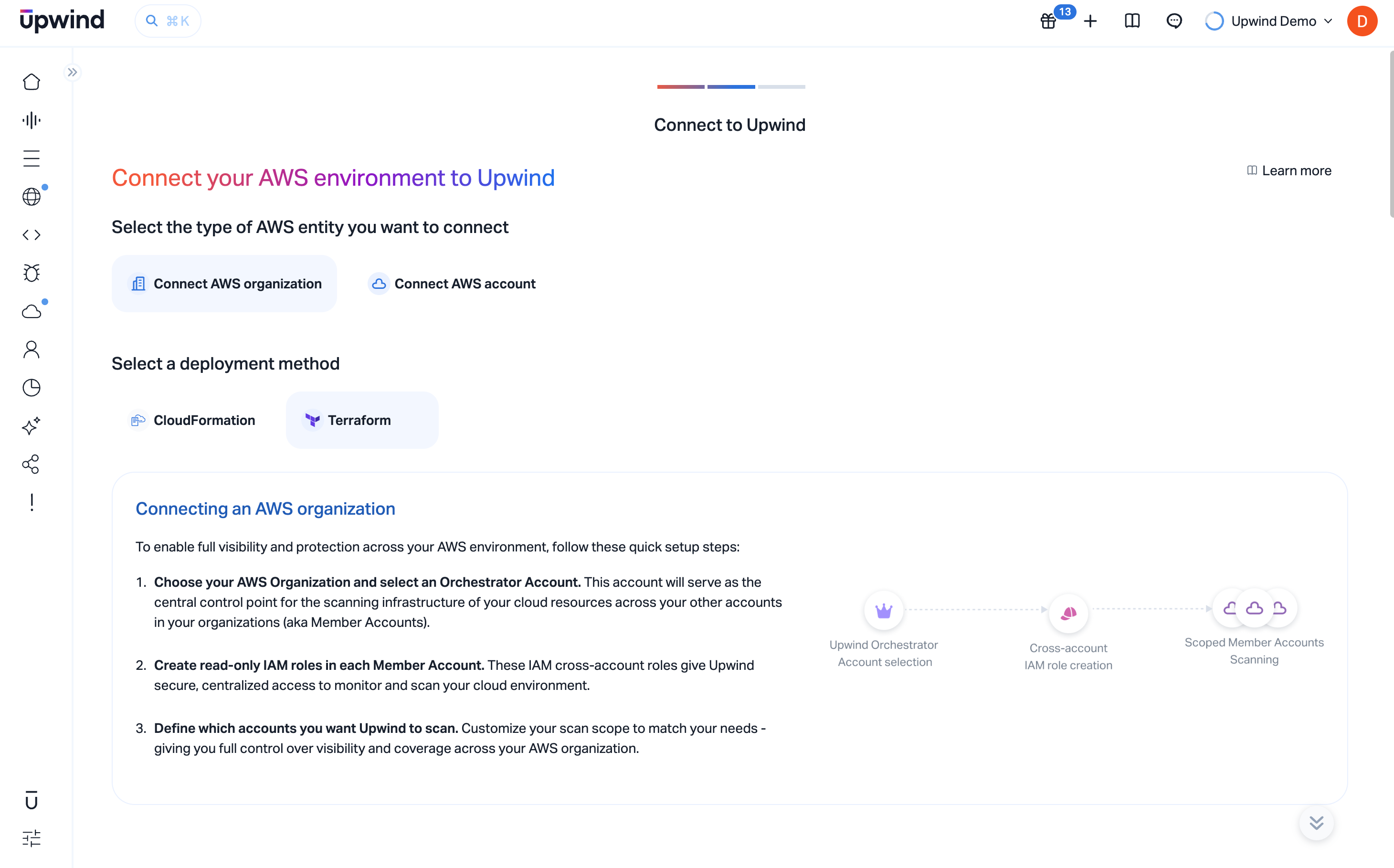
The Upwind AWS Organization Terraform module can be used to connect multiple accounts within the same AWS Organization to Upwind.
noteThe Terraform module does not attempt to manage or interact with multiple accounts within the AWS Organization, but instead instead takes a more simplistic approach of being a module which can be applied to multiple accounts creating the resources necessary for those accounts. It is assumed that the module will be used in other IaC tools capable of scaling more favorably across multiple accounts, and can be more readily integrated by your engineers.
Step 1.1: Provide the parameters to identify your AWS Organization
- Sign in to the AWS Management Console of your management account.
- Navigate to Organizations → Organize accounts.
- Copy your AWS Management Account ID and paste it into the field labeled Enter AWS Management Account ID.
Designate an Orchestrator Account
-
Enter the AWS Account ID you want to use as the Orchestrator Account. This account will be responsible for creating and managing the scanning resources on behalf of your organization. The orchestrator should have sufficient permissions to assume roles across your accounts and initiate scans.
noteThe orchestrator account must belong to the same AWS Organization and have permissions to assume roles in the other accounts. This does not have to be the management account.
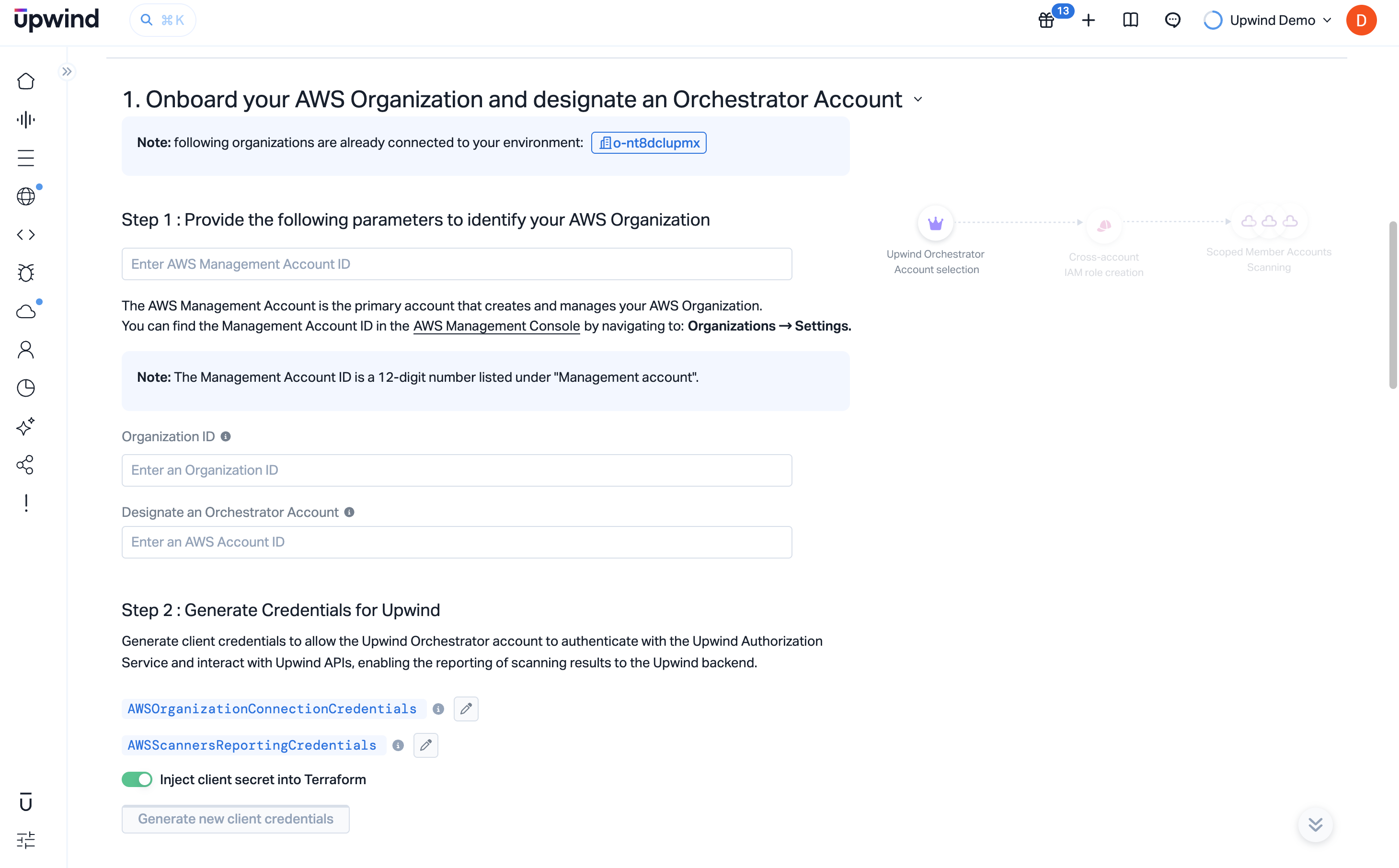
Step 1.2: Generate Credentials for Upwind
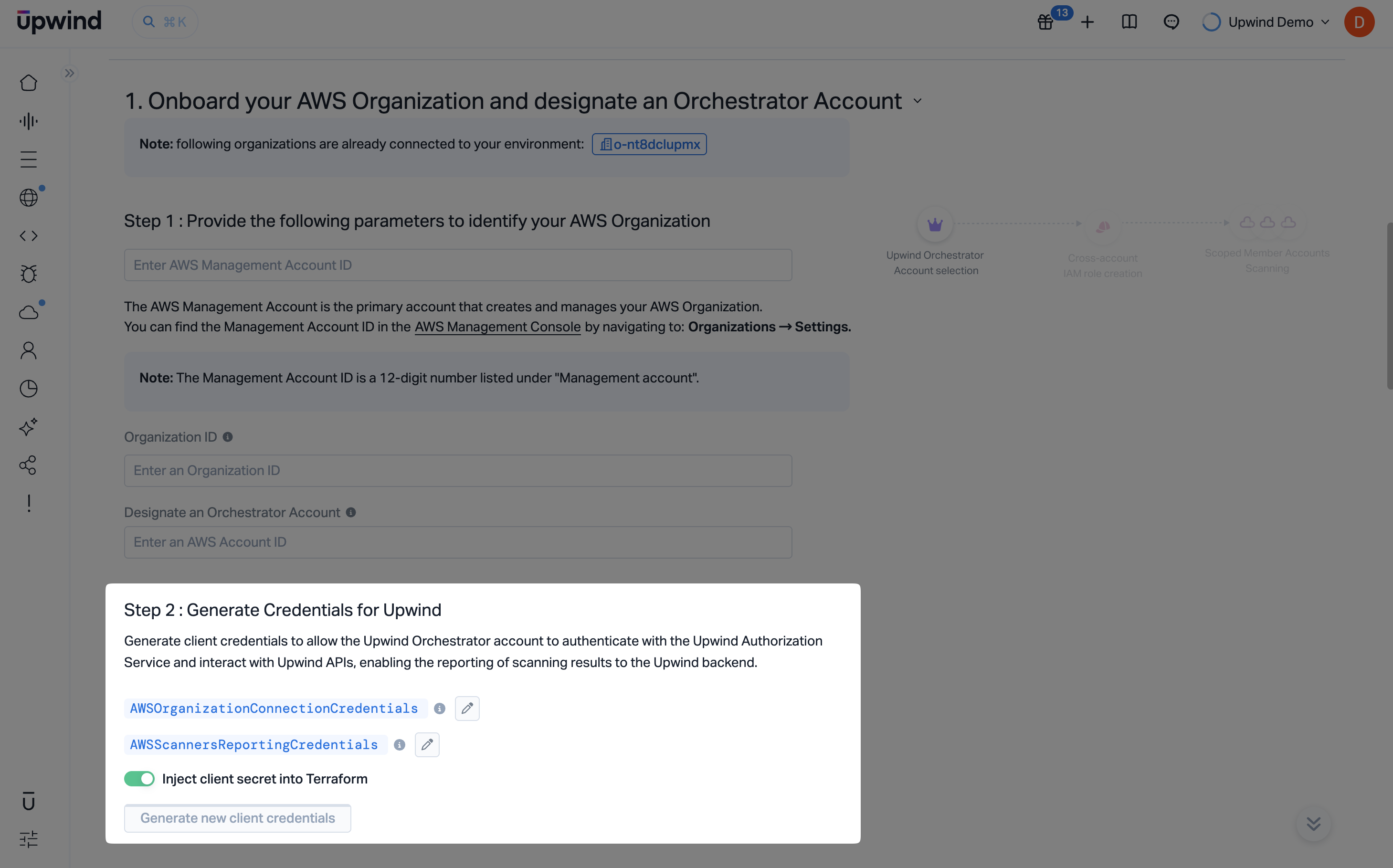
In this step, you will generate the client credentials that allow the Upwind Orchestrator Account to authenticate with the Upwind Authorization Service and interact with Upwind APIs. These credentials are required to connect your AWS Organization to Upwind and enable secure reporting and scanning.
You will generate two sets of credentials:
AWSOrgConnectionCredentials- used to authenticate and identify accounts within your AWS Organization. These credentials are essential for allowing Upwind to discover, connect, and onboard your AWS accounts.AWSScannersReportingCredentials- used to securely report scan results from your AWS accounts back to Upwind. They enable continuous visibility by allowing Upwind to receive findings, metadata, and status updates from your scanned resources.
Click Generate new client credentials to create both sets of credentials. Once generated, they will be used in later steps to complete the onboarding process.
Step 2: Create the required IAM roles
In this step, you'll use the provided Terraform module to provision the required IAM roles that enable Upwind to access and scan all accounts in your AWS Organization. Before copying the generated module, you can set the same optional organization settings as in the CloudFormation flow-including Use Existing Network Resources and Custom Tags under Define scanner settings (Optional).
By applying this module, you allow Upwind to automatically deploy the Cloud Scanner infrastructure - including necessary IAM roles and compute components - ensuring full and continuous visibility across your environment.
noteAll required variables have already been injected into the Terraform module – no manual input is needed.
Step 2.1: Assign the required AWS IAM roles
- First, expand Define scanner settings (Optional). You can configure:
- Use Existing Network Resources - if you will supply network configuration for Cloud Scanners in all regions, set this to Yes so the deployment omits EC2 network-management permissions that Upwind would otherwise need to create VPC resources.
- Custom Tags - enable the toggle, then add up to ten key-value pairs. These organization-level tags are applied automatically to every resource Upwind deploys (including what is created during onboarding and later Cloud Scanner infrastructure), so you can recognize and organize Upwind-managed resources alongside your own tagging standards.
Cloud Scanner SettingsThe Use Existing Network Resources choice is reflected in the generated Terraform module (for example
upwind_include_ec2_network_management_permissions). Custom Tags are stored in Upwind per AWS organization-they are not CloudFormation-specific and apply to Upwind-deployed resources the same way as when you onboard with CloudFormation.-
Before proceeding, review all configuration settings and parameters to ensure they are tailored to your AWS environment.
-
Create a new directory for your Terraform project and navigate to it in your terminal.
-
Inside the project directory, create a new file named
main.tfto hold the Terraform configuration. -
Copy the code snippet from the Terraform setup section and paste it into
main.tf.main.tfprovider "aws" {
region = "us-east-1"
}
module "upwind_aws_org_onboarding" {
source = "https://get.upwind.io/terraform/modules/aws-org-onboarding/aws-org-onboarding-1.2.1.tar.gz"
# The external id - added to the trusted identity of the roles which can be assumed
# by Upwind.
external_id = "5C66DE9B-BC94-4163-8CAC-25F09559478E"
upwind_org_register_auth_client_id = "<CLIENT ID>"
upwind_org_register_auth_secret_value = "<SECRET>"
upwind_organization_id = "org_abcdef123456"
# The orchestrator account - extra privileges will be assigned to the roles in this account, which is the account in which
# the Cloud Scanners shall be installed.
# If this is not specific these Cloud Scanner related resources will not be created.
orchestrator_account_id = "111111111111"
# The management account for the AWS org. The Org discovery role will be created in this account and optionally roles that allow for
# resource auditing and scanning can be installed too.
management_account_id = "222222222222"
install_roles_in_management_account = "true"
# Include / Exclude EC2 network permissions. Recommended excluding if you intend to provide your own network configurations.
upwind_include_ec2_network_management_permissions = "true"
# The role name suffix is a random set of characters that will be appended to each resource id to ensure uniqueness.
role_name_suffix = "pxjtg8wo"
# The credentials for Upwind service
upwind_cloudscanner_auth_client_id = "<SCANNER CLIENT ID>"
upwind_cloudscanner_auth_secret_value = "<SCANNER SECRET>"
# Output the ARN of the organization discovery role
output "discovery_arn" {
value = one(module.upwind_aws_org_onboarding.organization_discovery_role_arn[*])
}
output "org_registration_response_state" {
description = "Org role registration response state"
value = one(module.upwind_aws_org_onboarding[*].org_registration_response_state)
}
}
tipShould you wish to disable DSPM entirely you can set
upwind_feature_dspm_enabled = false. Should you wish to install the DSPM roles into specific accounts only, you can setupwind_feature_dspm_account_whitelist = [123,456]where the values in the list are the AWS Account IDs where the DSPM permissions are installed.Step 2.2: Terraform apply
ImportantThe Terraform module needs to be applied to each account to be onboarded. Unlike the Cloudformation option, the module is not automatically deployed to each account. Instead it is recommended to use a tool such as terragrunt or other IAC orchestration applications / services.
The module can be run manually using
terraform init && terraform apply, however, the module has been created with the intention of being integrated into an IaC tool, such as Terragrunt, that can be more readily used to deploy the module into multiple accounts within the AWS Organization. Internally the Terraform module conditionally creates the roles in resources as it is applied to each account.tipDuring an initial integration, deploying the Terraform in the management account first will allow the process of discovering the accounts to begin. At this point it should be possible to view the accounts in the AWS Organization, and set their scopes. As the Terraform module is applied to each of these accounts, they will continue to connect.
Step 3: Define Account Scope
The final step of the onboarding process allows you to define the scope for each AWS account you've just connected - as well as for any new accounts that may be created in the future under your AWS Organization.
The Account Scopes can be modified later in the Organizations and accounts page.
-
This view displays your AWS Organization structure and all linked accounts, allowing you to choose which accounts should be audited using Cloud APIs or scanned using Upwind Cloud Scanners.
-
Enable
Cloud APIto grant Upwind access to read metadata and perform auditing across the account. -
Enable
Cloud Scannerto deploy the Upwind Cloud Scanner within the selected account.Scope DependencyCloud Scanner scopes are dependent on the Cloud API scope. If you enable the Cloud Scanner scope, the Cloud API scope must also be enabled.
-
-
Enable Auto-Connect for New Accounts – when enabled, all newly created accounts under the organization will be automatically connected to Upwind. These accounts will be granted Cloud API access and will be scanned by the Cloud Scanner by default, ensuring continuous protection without additional setup.
-
Finally, Click Save, before continuing to Explore the Upwind Management Console or navigating to the Onboarding Centre.
You're now fully connected to Upwind and protected across the selected AWS accounts.
If you experience any issues during the Cloud Scanner installation, please refer to the Cloud Scanner troubleshooting guide for AWS, in the Components section of the Upwind Documentation Center.
- AWS CloudFormation
- Terraform
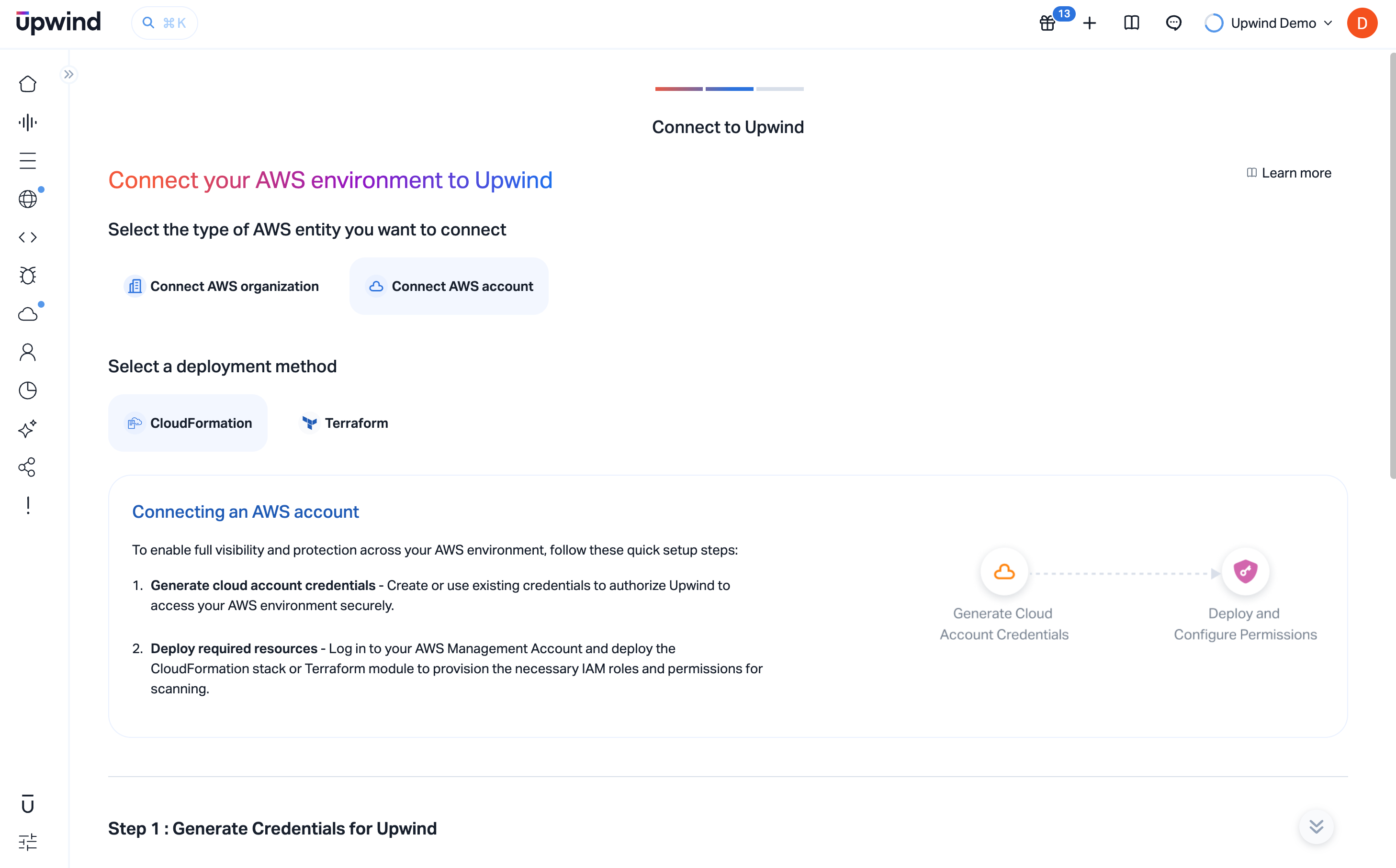
When using CloudFormation, you will deploy a CloudFormation Stack which uses a StackSet to create the necessary permissions in all of the accounts within the AWS Organization. Optionally, it will deploy the same stack in the management account if desired.
Step 1: Onboard your AWS Organization and designate an Orchestrator Account
In this step, you'll provide basic information to allow Upwind to identify and connect to your AWS Organization.
Step 1.1: Provide the parameters to identify your AWS Organization
- Sign in to the AWS Management Console of your management account.
- Navigate to Organizations → Organize accounts.
- Copy your Root ID – this is the unique identifier for your root organizational unit and typically begins with
r-. Also copy the AWS organization id - typically this beginso-. - Paste the Root ID into the field labeled Enter AWS Root ID. Also past the AWS organization id into the field labeled Organization ID
Designate an Orchestrator Account
-
Enter the AWS Account ID you want to use as the Orchestrator Account. This account will be responsible for creating and managing the scanning resources on behalf of your organization. The orchestrator should have sufficient permissions to assume roles across your accounts and initiate scans.
noteThe orchestrator account must belong to the same AWS Organization and have permissions to assume roles in the other accounts. This does not have to be the management account.
Step 1.2: Generate Credentials for Upwind
Once your organization and orchestrator account are defined, you will generate the credentials required for authentication.
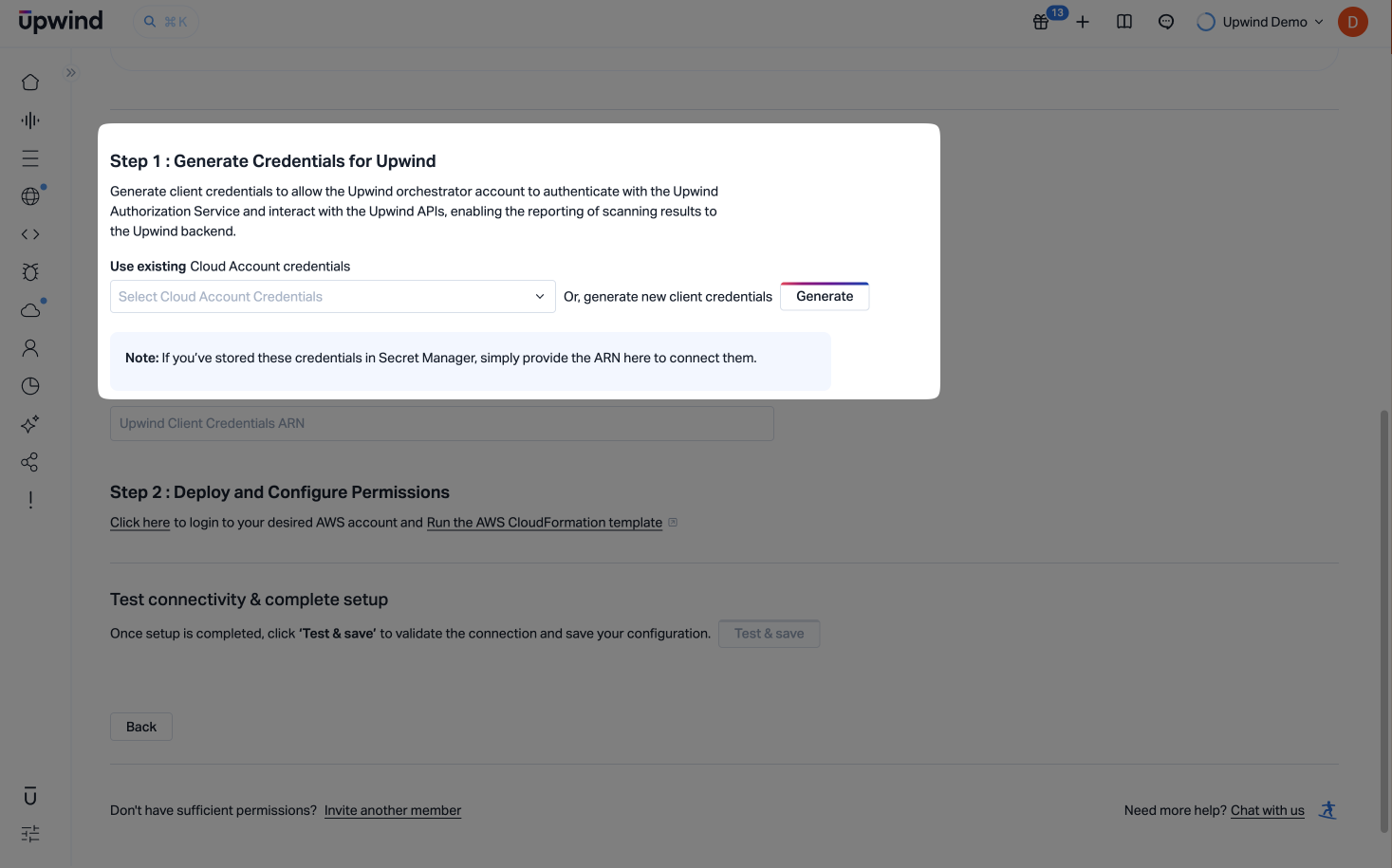
- Click Generate new client credentials to create a unique credential set for Upwind. Alternatively, choose an existing Cloud Account credential from the dropdown.
- These credentials are used by the orchestrator account to interact with the Upwind Authorization Service and APIs securely.
- You can optionally customize the name of the credentials under the
AWSOrganizationConnectionCredentialslabel.
These credentials will enable secure communication and reporting between your AWS environment and the Upwind platform.
 note
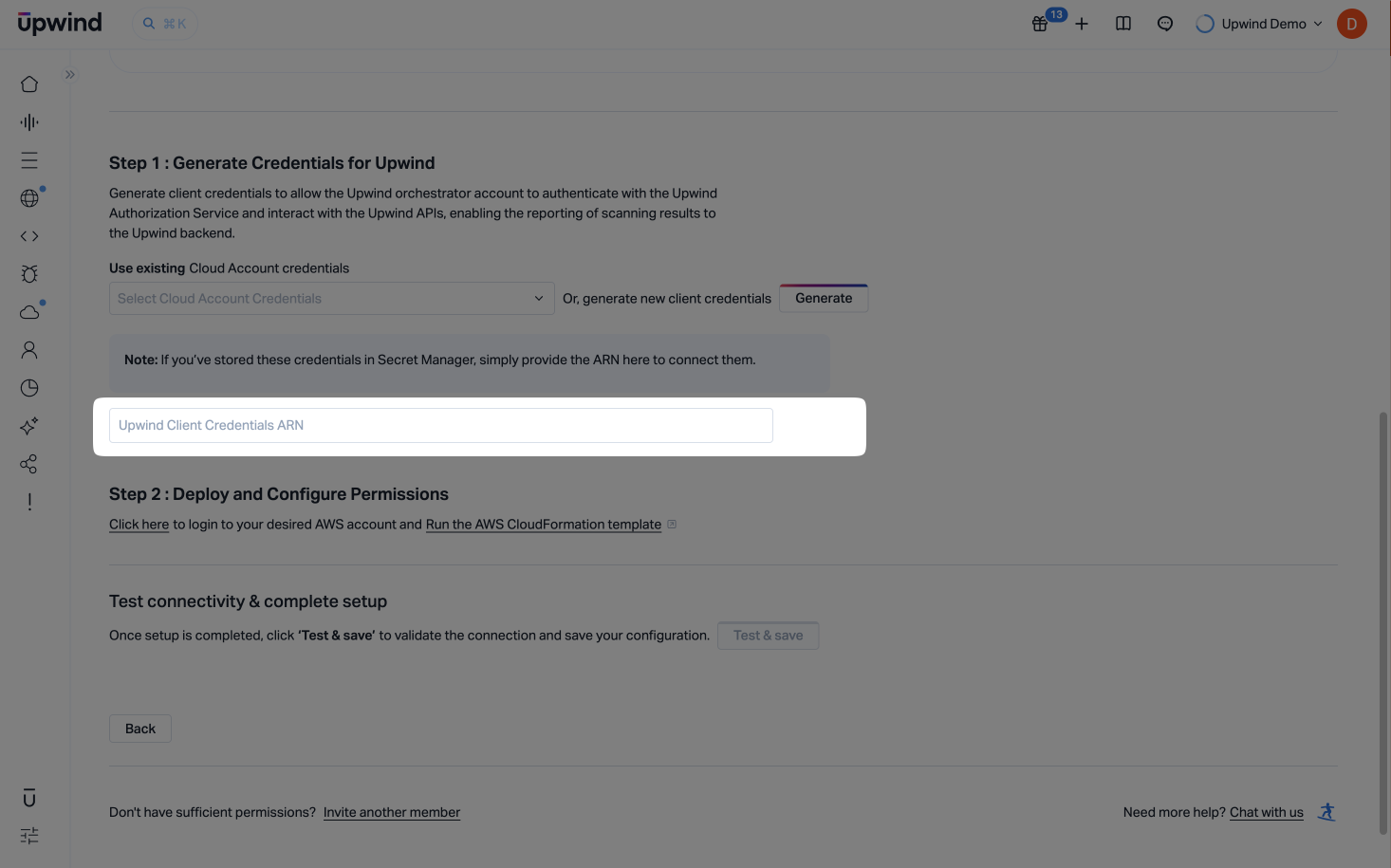
noteIf you've already stored the credentials in AWS Secrets Manager, paste the secret ARN into the Upwind Client Credentials ARN field instead of generating a new credential set.
Step 2: Create the required IAM roles
In this step, you can provide the organization specific configuration, which includes the following options, before connecting to your AWS management account to apply the CloudFormation which will create the roles.
- Option which will exclude the EC2 management permissions, if you intend to use your own network configurations
- Optional custom tags for all Upwind-deployed resources (configured under
Define scanner settings)
Upwind requires cross-account access to scan and protect all accounts under your AWS Organization. This step ensures that the correct IAM roles are provisioned in all accounts.
Step 2.1: Log in to your AWS Management Account
- Sign in to the AWS Management Console of your management account.
infoMake sure you are logged into the AWS Management Account of your organization and have selected the region where you intend to deploy the CloudFormation stacks.
Step 2.2: Create cross-account IAM roles
Before deploying the IAM roles, you can make some additional Cloud Scanners settings to your deployment:
- First, expand
Define scanner settings. You can configure:- Use Existing Network Resources - if you will supply network configuration for Cloud Scanners in all regions, set this to Yes so the template omits EC2 network-management permissions that Upwind would otherwise need to create VPC resources.
- Custom Tags - enable the toggle, then add up to ten key-value pairs. These organization-level tags are applied automatically to every resource Upwind deploys (including what is created during onboarding and later Cloud Scanner infrastructure), so you can recognize and organize Upwind-managed resources alongside your own tagging standards.
Cloud Scanner SettingsThe Use Existing Network Resources choice is passed into the CloudFormation stack parameters. Custom Tags are stored in Upwind per AWS organization and apply to Upwind-deployed resources the same way for CloudFormation and Terraform onboarding.
-
Then, deploy the Upwind CloudFormation stack to automatically create the IAM roles needed for scanning and orchestration across your organization.
-
Use the toggle to choose whether to include your AWS Management Account in the onboarding process. When enabled, the CloudFormation template will deploy the necessary IAM roles to the management account, allowing Upwind to scan and monitor it as part of your organization.
noteAll member accounts in your AWS Organization will be connected to Upwind by default. Including the management account is recommended for full visibility. If you prefer to exclude it, simply disable the toggle before proceeding.
-
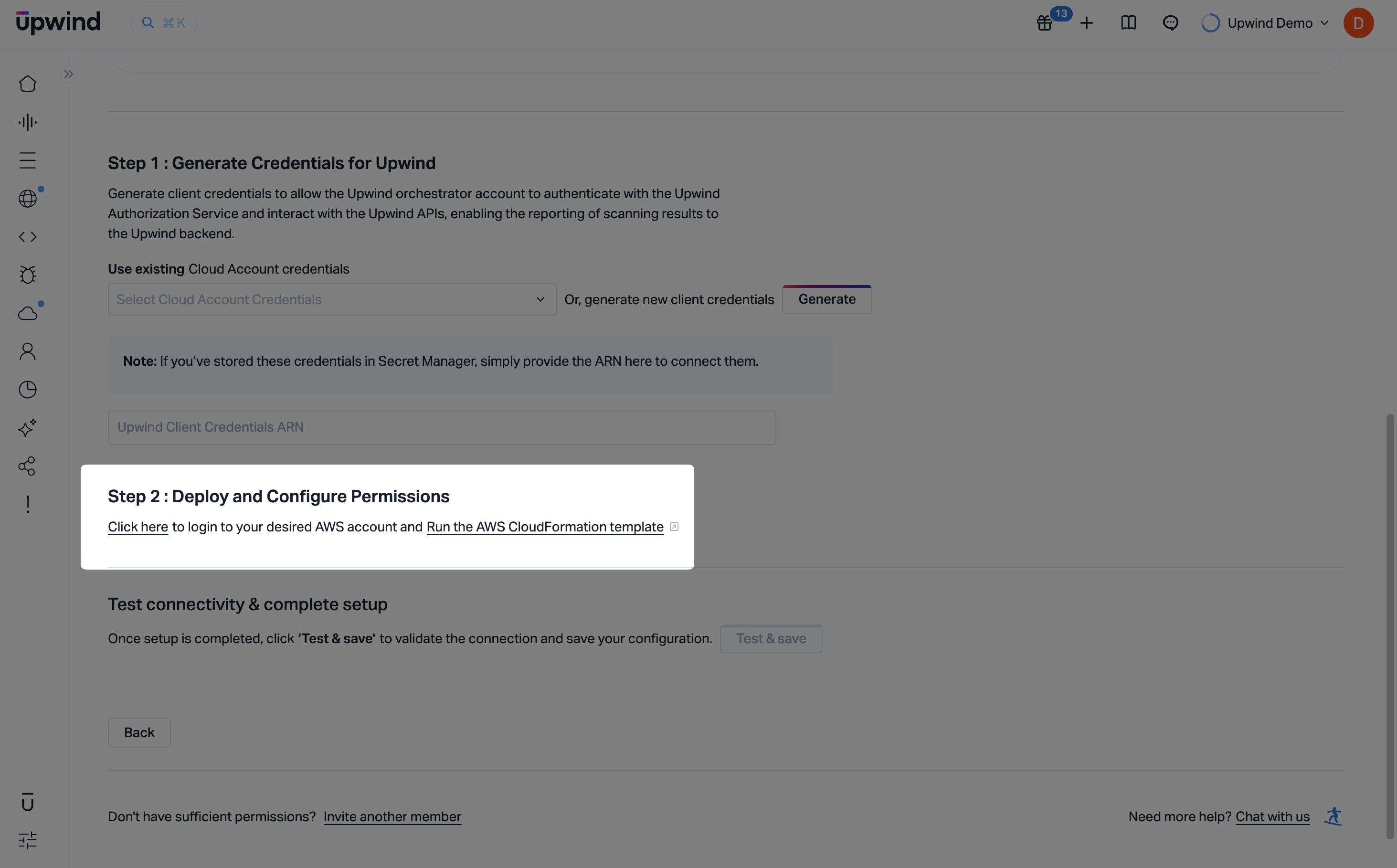
Click the Run the AWS CloudFormation template link to open a pre-configured CloudFormation Quick Create Stack in a new browser tab. There is no need to manually fill in any of the parameters- all fields are automatically pre-populated based on the information you entered in the previous steps.
If you'd like to override any of the default values, you may do so on the stack creation page. The following section provides a detailed explanation of each parameter.
infoPlease review carefully and adjust as needed to fit your specific environment. Variables are explained under Glossary.
Onboarding Resource TagsTags to be applied to the onboarding resources (eg CloudFormation stacks and roles) can be added to the Cloudformation Stack configuration during this step.
- Check the Capabilities section and acknowledge that the template may create IAM resources.
- Click Create stack and wait for the stack to complete. For an AWS Organization with a few hundred accounts, this can take several minutes to complete.
Step 2.3: Enter the required Role ARN from your CloudFormation stack
- Once complete, retrieve the ARN of the Organization discovery from from the AWS Console. It can either be retrieved from the resource or output tabs of the CloudFormation Stack just installed.
- Enter the ARN in to the Upwind Management Console, and Click Validate to ensure that Upwind can securely access your AWS Organization.
Step 3: Define Account Scope
The final step of the onboarding process allows you to define the scope for each AWS account you've just connected - as well as for any new accounts that may be created in the future under your AWS Organization.
The Account Scopes can be modified later in the Organizations and accounts page.
-
This view displays your AWS Organization structure and all linked accounts, allowing you to choose which accounts should be audited using Cloud APIs or scanned using Upwind Cloud Scanners.
-
Enable
Cloud APIto grant Upwind access to read metadata and perform auditing across the account. -
Enable
Cloud Scannerto deploy the Upwind Cloud Scanner within the selected account.Scope DependencyCloud Scanner scopes are dependent on the Cloud API scope. If you enable the Cloud Scanner scope, the Cloud API scope must also be enabled.
-
-
Enable Auto-Connect for New Accounts – when enabled, all newly created accounts under the organization will be automatically connected to Upwind. These accounts will be granted Cloud API access and will be scanned by the Cloud Scanner by default, ensuring continuous protection without additional setup.
-
Finally, Click Save, before continuing to Explore the Upwind Management Console or navigating to the Onboarding Centre.
You're now fully connected to Upwind and protected across the selected AWS accounts.
If you experience any issues during the Cloud Scanner installation, please refer to the Cloud Scanner troubleshooting guide for AWS, in the Components section of the Upwind Documentation Center.
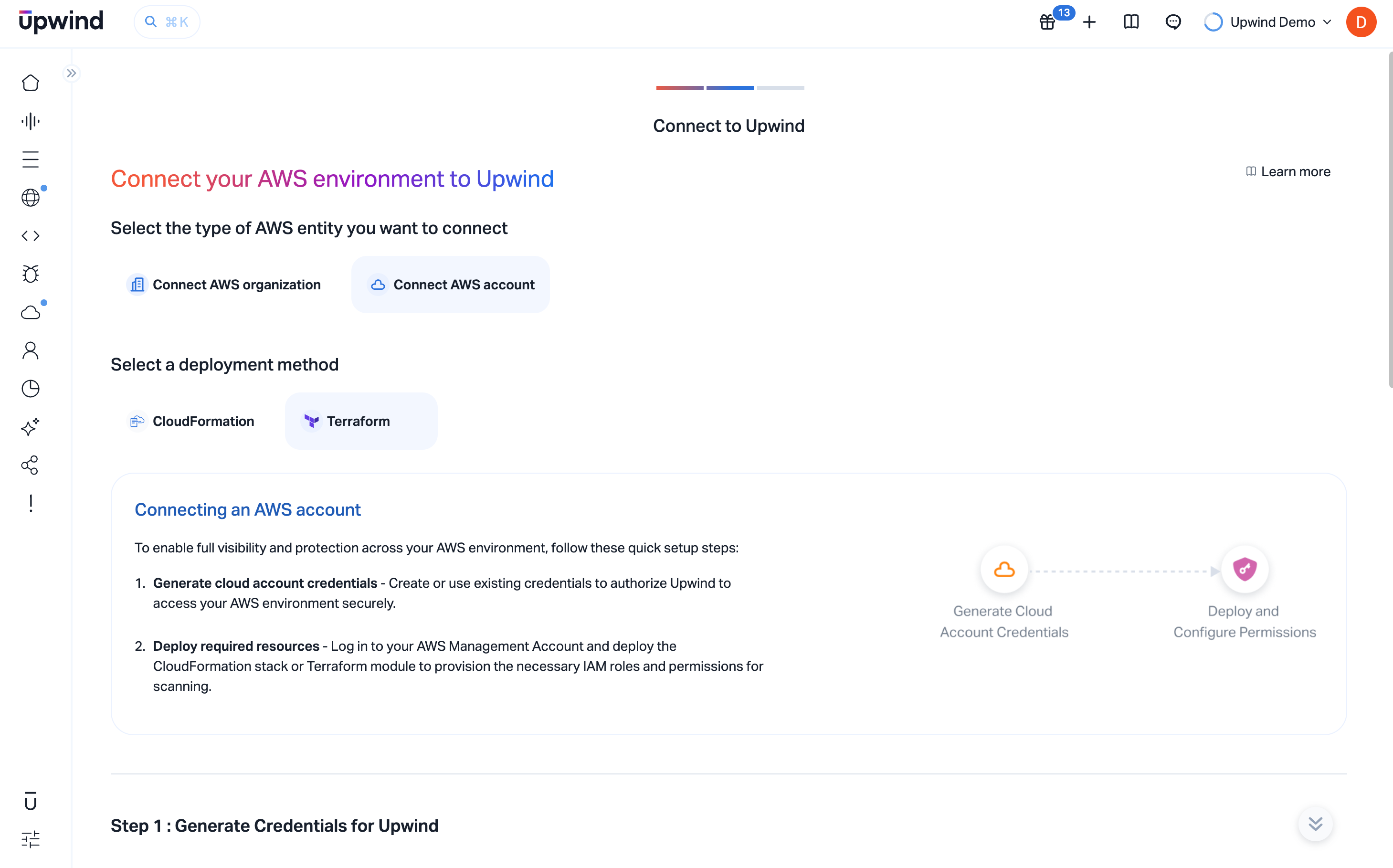
The Upwind AWS Organization Terraform module can be used to connect multiple accounts within the same AWS Organization to Upwind.
noteThe Terraform module does not attempt to manage or interact with multiple accounts within the AWS Organization, but instead instead takes a more simplistic approach of being a module which can be applied to multiple accounts creating the resources necessary for those accounts. It is assumed that the module will be used in other IaC tools capable of scaling more favorably across multiple accounts, and can be more readily integrated by your engineers.
Step 1.1: Provide the parameters to identify your AWS Organization
- Sign in to the AWS Management Console of your management account.
- Navigate to Organizations → Organize accounts.
- Copy your AWS Management Account ID and paste it into the field labeled Enter AWS Management Account ID.
Designate an Orchestrator Account
-
Enter the AWS Account ID you want to use as the Orchestrator Account. This account will be responsible for creating and managing the scanning resources on behalf of your organization. The orchestrator should have sufficient permissions to assume roles across your accounts and initiate scans.
noteThe orchestrator account must belong to the same AWS Organization and have permissions to assume roles in the other accounts. This does not have to be the management account.
Step 1.2: Generate Credentials for Upwind
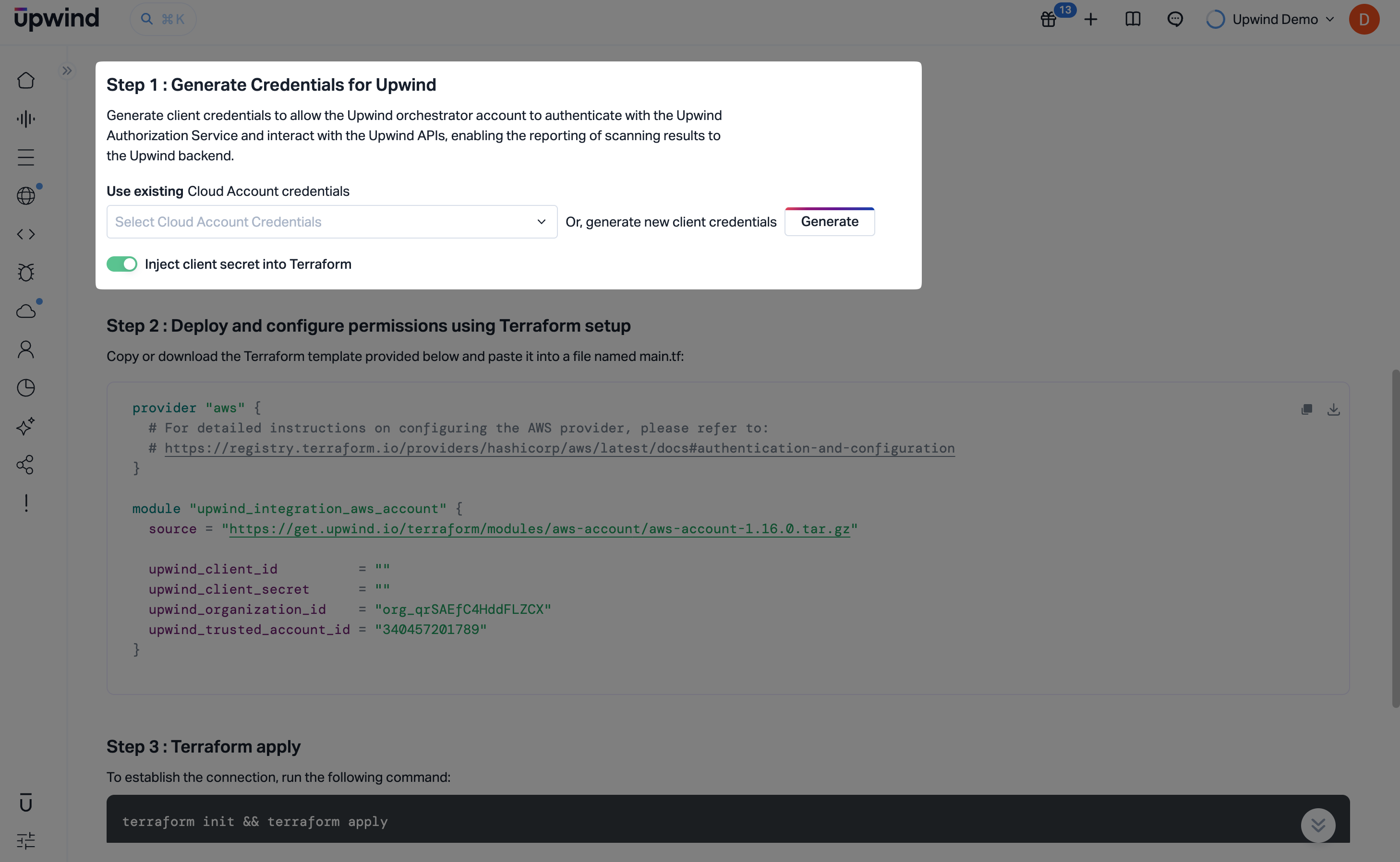
In this step, you will generate the client credentials that allow the Upwind Orchestrator Account to authenticate with the Upwind Authorization Service and interact with Upwind APIs. These credentials are required to connect your AWS Organization to Upwind and enable secure reporting and scanning.
You will generate two sets of credentials:
AWSOrgConnectionCredentials- used to authenticate and identify accounts within your AWS Organization. These credentials are essential for allowing Upwind to discover, connect, and onboard your AWS accounts.AWSScannersReportingCredentials- used to securely report scan results from your AWS accounts back to Upwind. They enable continuous visibility by allowing Upwind to receive findings, metadata, and status updates from your scanned resources.
Click Generate new client credentials to create both sets of credentials. Once generated, they will be used in later steps to complete the onboarding process. Enable Inject client secret into Terraform if you want the generated client secret to be embedded directly into the Terraform module that follows.
Step 2: Create the required IAM roles
In this step, you'll use the provided Terraform module to provision the required IAM roles that enable Upwind to access and scan all accounts in your AWS Organization. Before copying the generated module, you can set the same optional organization settings as in the CloudFormation flow-including Use Existing Network Resources and Custom Tags under Define scanner settings (Optional).
By applying this module, you allow Upwind to automatically deploy the Cloud Scanner infrastructure - including necessary IAM roles and compute components - ensuring full and continuous visibility across your environment.
noteAll required variables have already been injected into the Terraform module – no manual input is needed.
Step 2.1: Assign the required AWS IAM roles
- First, expand Define scanner settings (Optional). You can configure:
- Use Existing Network Resources - if you will supply network configuration for Cloud Scanners in all regions, set this to Yes so the deployment omits EC2 network-management permissions that Upwind would otherwise need to create VPC resources.
- Custom Tags - enable the toggle, then add up to ten key-value pairs. These organization-level tags are applied automatically to every resource Upwind deploys (including what is created during onboarding and later Cloud Scanner infrastructure), so you can recognize and organize Upwind-managed resources alongside your own tagging standards.
Cloud Scanner SettingsThe Use Existing Network Resources choice is reflected in the generated Terraform module (for example
upwind_include_ec2_network_management_permissions). Custom Tags are stored in Upwind per AWS organization-they are not CloudFormation-specific and apply to Upwind-deployed resources the same way as when you onboard with CloudFormation.-
Before proceeding, review all configuration settings and parameters to ensure they are tailored to your AWS environment.
-
Create a new directory for your Terraform project and navigate to it in your terminal.
-
Inside the project directory, create a new file named
main.tfto hold the Terraform configuration. -
Copy the code snippet from the Terraform setup section and paste it into
main.tf.main.tfprovider "aws" {
region = "us-east-1"
}
module "upwind_aws_org_onboarding" {
source = "https://get.upwind.io/terraform/modules/aws-org-onboarding/aws-org-onboarding-1.2.1.tar.gz"
# The external id - added to the trusted identity of the roles which can be assumed
# by Upwind.
external_id = "5C66DE9B-BC94-4163-8CAC-25F09559478E"
upwind_org_register_auth_client_id = "<CLIENT ID>"
upwind_org_register_auth_secret_value = "<SECRET>"
upwind_organization_id = "org_abcdef123456"
# The orchestrator account - extra privileges will be assigned to the roles in this account, which is the account in which
# the Cloud Scanners shall be installed.
# If this is not specific these Cloud Scanner related resources will not be created.
orchestrator_account_id = "111111111111"
# The management account for the AWS org. The Org discovery role will be created in this account and optionally roles that allow for
# resource auditing and scanning can be installed too.
management_account_id = "222222222222"
install_roles_in_management_account = "true"
# Include / Exclude EC2 network permissions. Recommended excluding if you intend to provide your own network configurations.
upwind_include_ec2_network_management_permissions = "true"
# The role name suffix is a random set of characters that will be appended to each resource id to ensure uniqueness.
role_name_suffix = "pxjtg8wo"
# The credentials for Upwind service
upwind_cloudscanner_auth_client_id = "<SCANNER CLIENT ID>"
upwind_cloudscanner_auth_secret_value = "<SCANNER SECRET>"
# Output the ARN of the organization discovery role
output "discovery_arn" {
value = one(module.upwind_aws_org_onboarding.organization_discovery_role_arn[*])
}
output "org_registration_response_state" {
description = "Org role registration response state"
value = one(module.upwind_aws_org_onboarding[*].org_registration_response_state)
}
}
tipShould you wish to disable DSPM entirely you can set
upwind_feature_dspm_enabled = false. Should you wish to install the DSPM roles into specific accounts only, you can setupwind_feature_dspm_account_whitelist = [123,456]where the values in the list are the AWS Account IDs where the DSPM permissions are installed.Step 2.2: Terraform apply
ImportantThe Terraform module needs to be applied to each account to be onboarded. Unlike the Cloudformation option, the module is not automatically deployed to each account. Instead it is recommended to use a tool such as terragrunt or other IAC orchestration applications / services.
The module can be run manually using
terraform init && terraform apply, however, the module has been created with the intention of being integrated into an IaC tool, such as Terragrunt, that can be more readily used to deploy the module into multiple accounts within the AWS Organization. Internally the Terraform module conditionally creates the roles in resources as it is applied to each account.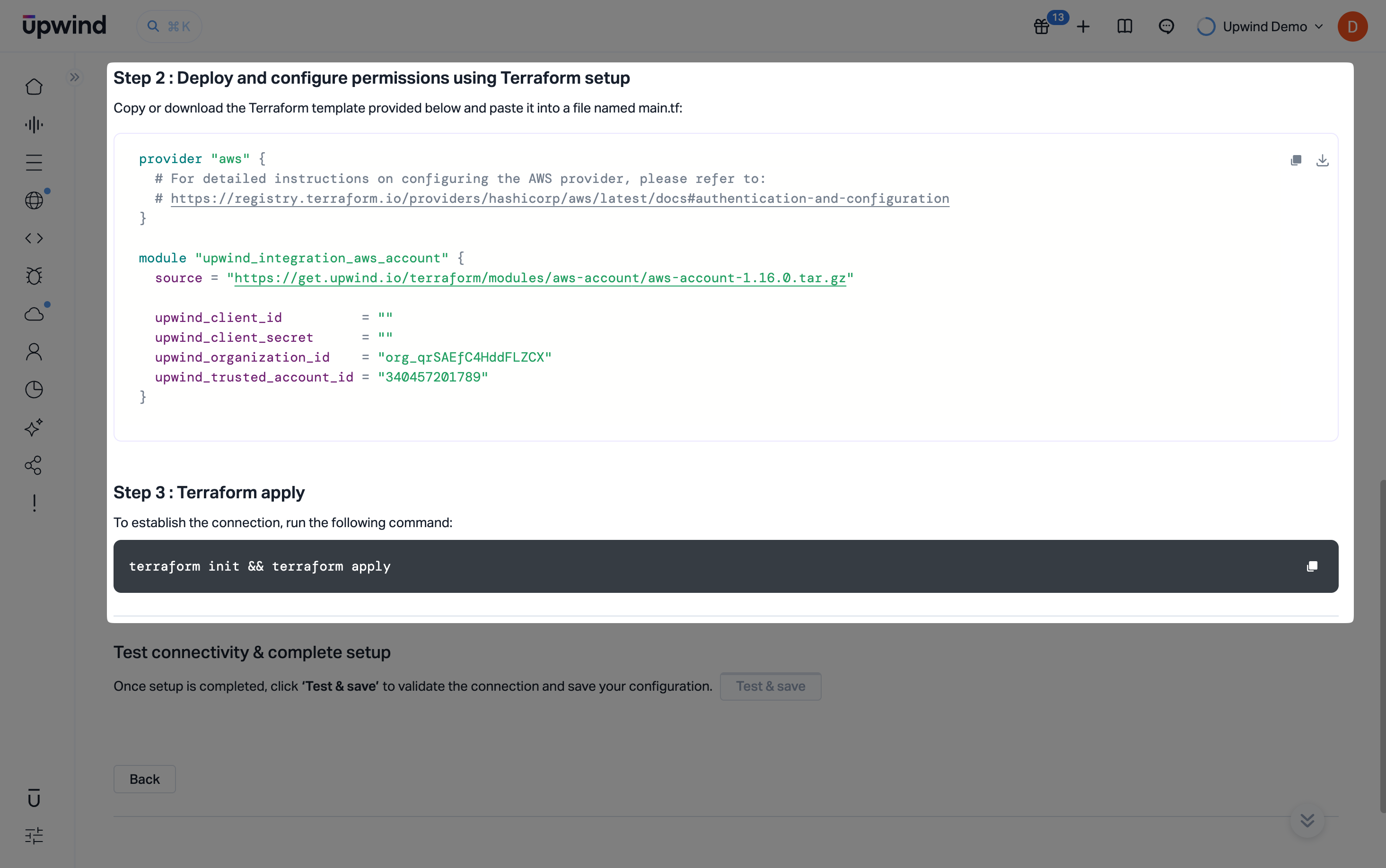 tip
tipDuring an initial integration, deploying the Terraform in the management account first will allow the process of discovering the accounts to begin. At this point it should be possible to view the accounts in the AWS Organization, and set their scopes. As the Terraform module is applied to each of these accounts, they will continue to connect.
Step 3: Define Account Scope
The final step of the onboarding process allows you to define the scope for each AWS account you've just connected - as well as for any new accounts that may be created in the future under your AWS Organization.
The Account Scopes can be modified later in the Organizations and accounts page.
-
This view displays your AWS Organization structure and all linked accounts, allowing you to choose which accounts should be audited using Cloud APIs or scanned using Upwind Cloud Scanners.
-
Enable
Cloud APIto grant Upwind access to read metadata and perform auditing across the account. -
Enable
Cloud Scannerto deploy the Upwind Cloud Scanner within the selected account.Scope DependencyCloud Scanner scopes are dependent on the Cloud API scope. If you enable the Cloud Scanner scope, the Cloud API scope must also be enabled.
-
-
Enable Auto-Connect for New Accounts – when enabled, all newly created accounts under the organization will be automatically connected to Upwind. These accounts will be granted Cloud API access and will be scanned by the Cloud Scanner by default, ensuring continuous protection without additional setup.
-
Finally, Click Save, before continuing to Explore the Upwind Management Console or navigating to the Onboarding Centre.
You're now fully connected to Upwind and protected across the selected AWS accounts.
If you experience any issues during the Cloud Scanner installation, please refer to the Cloud Scanner troubleshooting guide for AWS, in the Components section of the Upwind Documentation Center.
Organizations and accounts
Once the onboarding process is complete, you can navigate to the Organizations and accounts page , from where you will be able to inspect the accounts belonging to the onboarded Organization.
If you navigate to the Organization you can inspect the accounts that are members of that Organization and the connectivity state. It can take a few minutes for all the accounts to become connected.
Connected AccountsUpwind connects to an account by assuming the roles created during onboarding. If an account is show as disconnected it may be that the roles have been omitted from that account, using the account filter options describe above, or that there was an issue creating the roles during the onboarding. If there are accounts which are not connected, but should be please contact support.
Upwind Roles
During the onboarding process, the following roles are created in your account:
UpwindCloudScannerExecutionRole
- CloudScannerAccessPolicy
- CloudScannerDSPMPolicy
{
  "Version": "2012-10-17",
  "Statement": [
      {
          "Condition": {
              "StringLike": {
                  "kms:ViaService": "ec2.*.amazonaws.com"
              }
          },
          "Action": [
              "kms:ReEncryptFrom"
          ],
          "Resource": "*",
          "Effect": "Allow",
          "Sid": "PermitEBSEncryptFromAnyCMK"
      },
      {
          "Condition": {
              "Bool": {
                  "kms:GrantIsForAWSResource": "true"
              }
          },
          "Action": [
              "kms:CreateGrant"
          ],
          "Resource": "*",
          "Effect": "Allow",
          "Sid": "PermitEBSToGrantForAnyCMK"
      },
      {
          "Condition": {
              "StringEquals": {
                  "aws:ResourceTag/UpwindComponent": "CloudScanner"
              }
          },
          "Action": [
              "kms:DescribeKey",
              "kms:Encrypt",
              "kms:CreateGrant",
              "kms:ReEncryptTo",
              "kms:GenerateDataKey*"
          ],
          "Resource": "*",
          "Effect": "Allow",
          "Sid": "PermitEBSToEncryptWithUpwindCMK"
      },
      {
          "Action": [
              "ec2:DescribeInstances",
              "ec2:DescribeVolumes",
              "ec2:DescribeRegions",
              "ec2:CreateSnapshot*",
              "ec2:DescribeSnapshots",
              "ec2:DescribeSnapshotAttribute",
              "ec2:CopySnapshot",
              "ec2:ModifySnapshotAttribute"
          ],
          "Resource": "*",
          "Effect": "Allow"
      },
      {
          "Action": [
              "ec2:CreateTags"
          ],
          "Resource": "arn:aws:ec2:*::snapshot/*",
          "Effect": "Allow"
      },
      {
          "Action": [
              "ecr:GetAuthorizationToken",
              "ecr:ListImages",
              "ecr:DescribeRepositories",
              "ecr:BatchGetImage",
              "ecr:GetDownloadUrlForLayer"
          ],
          "Resource": "*",
          "Effect": "Allow"
      },
      {
          "Action": [
              "lambda:GetFunction"
          ],
          "Resource": "*",
          "Effect": "Allow"
      },
      {
          "Condition": {
              "StringEquals": {
                  "ec2:ResourceTag/UpwindComponent": "CloudScanner"
              }
          },
          "Action": [
              "ec2:DeleteSnapshot"
          ],
          "Resource": "*",
          "Effect": "Allow"
      },
      {
          "Condition": {
              "StringEquals": {
                  "aws:ResourceTag/UpwindComponent": "CloudScanner"
              }
          },
          "Action": [
              "ebs:ListSnapshotBlocks",
              "ebs:GetSnapshotBlock"
          ],
          "Resource": [
              "arn:aws:ec2:*:*:snapshot/*"
          ],
          "Effect": "Allow"
      }
  ]
}
{
    "Version": "2012-10-17",
    "Statement": [
        {
            "Condition": {
                "StringEquals": {
                    "aws:ResourceAccount": "211817858971"
                }
            },
            "Action": [
                "s3:ListBucket",
                "s3:ListAllMyBuckets",
                "s3:GetObject"
            ],
            "Resource": "*",
            "Effect": "Allow",
            "Sid": "PermitDSPMS3BucketAccess"
        },
        {
            "Action": [
                "cloudwatch:GetMetricStatistics"
            ],
            "Resource": "*",
            "Effect": "Allow",
            "Sid": "PermitDSPMMetricAccess"
        }
    ]
}
UpwindCloudScannerAdministrationRole
- AmazonSSMManagedEC2InstanceDefaultPolicy
- CloudScannerOperationalAccessPolicy
- CloudScannerScalerAccessPolicy
- CloudScannerSnapshotterAccessPolicy
- CloudScannerUpdaterAccessPolicy
This policy is managed by AWS.
  {
    "Version": "2012-10-17",
    "Statement": [
        {
            "Sid": "AllowSSMAgentPermissions",
            "Effect": "Allow",
            "Action": [
                "ssm:DescribeAssociation",
                "ssm:GetDeployablePatchSnapshotForInstance",
                "ssm:GetDocument",
                "ssm:DescribeDocument",
                "ssm:GetManifest",
                "ssm:ListAssociations",
                "ssm:ListInstanceAssociations",
                "ssm:PutInventory",
                "ssm:PutComplianceItems",
                "ssm:PutConfigurePackageResult",
                "ssm:UpdateAssociationStatus",
                "ssm:UpdateInstanceAssociationStatus",
                "ssm:UpdateInstanceInformation"
            ],
            "Resource": "*"
        },
        {
            "Sid": "AllowSSMChannelMessaging",
            "Effect": "Allow",
            "Action": [
                "ssmmessages:CreateControlChannel",
                "ssmmessages:CreateDataChannel",
                "ssmmessages:OpenControlChannel",
                "ssmmessages:OpenDataChannel"
            ],
            "Resource": "*"
        },
        {
            "Sid": "AllowSSMLegacyMessaging",
            "Effect": "Allow",
            "Action": [
                "ec2messages:AcknowledgeMessage",
                "ec2messages:DeleteMessage",
                "ec2messages:FailMessage",
                "ec2messages:GetEndpoint",
                "ec2messages:GetMessages",
                "ec2messages:SendReply"
            ],
            "Resource": "*"
        }
    ]
}
{
    "Version": "2012-10-17",
    "Statement": [
        {
            "Action": [
                "logs:CreateLogStream",
                "logs:PutLogEvents"
            ],
            "Effect": "Allow",
            "Resource": [
                "arn:aws:logs:*:692679976520:log-group:/aws/ec2/system-logs/upwind-cs-ucsc-*"
            ]
        },
        {
            "Action": [
                "lambda:GetFunction"
            ],
            "Effect": "Allow",
            "Resource": "*"
        },
        {
            "Action": [
                "ec2:Describe*",
                "ec2:CreateSnapshot*",
                "ec2:CopySnapshot",
                "ec2:CreateVolume",
                "ec2:CreateTags",
                "ecr:GetAuthorizationToken",
                "ecr:ListImages",
                "ecr:DescribeRepositories",
                "ecr:BatchGetImage",
                "ecr:GetDownloadUrlForLayer"
            ],
            "Effect": "Allow",
            "Resource": "*"
        },
        {
            "Action": [
                "ec2:AttachVolume",
                "ec2:DetachVolume",
                "ec2:ModifyInstanceAttribute"
            ],
            "Condition": {
                "StringEquals": {
                    "ec2:ResourceTag/UpwindComponent": "CloudScanner"
                }
            },
            "Effect": "Allow",
            "Resource": "*",
            "Sid": "AttachDetachCloudScannerVolumes"
        },
        {
            "Action": [
                "ec2:DeleteSnapshot",
                "ec2:DeleteVolume"
            ],
            "Condition": {
                "StringEquals": {
                    "ec2:ResourceTag/UpwindComponent": "CloudScanner"
                }
            },
            "Effect": "Allow",
            "Resource": "*",
            "Sid": "DeleteScanningResources"
        },
        {
            "Action": [
                "secretsmanager:ListSecrets",
                "secretsmanager:GetSecretValue"
            ],
            "Condition": {
                "ArnLike": {
                    "secretsmanager:SecretId": "arn:aws:secretsmanager:us-east-1:692679976520:secret:/upwind/cloudscanner-credentials-frio9sm*"
                }
            },
            "Effect": "Allow",
            "Resource": "*",
            "Sid": "AccessUpwindSecrets"
        },
        {
            "Action": [
                "autoscaling:SetInstanceProtection"
            ],
            "Condition": {
                "StringEquals": {
                    "autoscaling:ResourceTag/Name": "upwind-cs-asg-*"
                }
            },
            "Effect": "Allow",
            "Resource": "*"
        },
        {
            "Action": [
                "autoscaling:*",
                "ec2:*"
            ],
            "Condition": {
                "StringEquals": {
                    "autoscaling:ResourceTag/UpwindComponent": "CloudScanner"
                }
            },
            "Effect": "Allow",
            "Resource": [
                "arn:aws:autoscaling:*:692679976520:autoScalingGroup*:autoScalingGroupName/*",
                "arn:aws:ec2:*:692679976520:launch-template/*"
            ]
        },
        {
            "Action": [
                "s3:GetObject"
            ],
            "Condition": {
                "StringEquals": {
                    "aws:ResourceAccount": "693339160499"
                }
            },
            "Effect": "Allow",
            "Resource": [
                "arn:aws:s3:::upwind-serverless-functions-*/integrations/cloudscanner/*"
            ]
        },
        {
            "Action": [
                "sts:AssumeRole"
            ],
            "Effect": "Allow",
            "Resource": "arn:aws:iam::*:role/UpwindCloudScannerExecutionRole-frio9sm"
        }
    ]
}
  {
      "Version": "2012-10-17",
      "Statement": [
          {
              "Action": [
                  "logs:CreateLogStream",
                  "logs:PutLogEvents"
              ],
              "Effect": "Allow",
              "Resource": "arn:aws:logs:*:692679976520:log-group:/aws/lambda/upwind-cs-lambda-ucsc-*"
          },
          {
              "Action": [
                  "secretsmanager:ListSecrets",
                  "secretsmanager:GetSecretValue"
              ],
              "Condition": {
                  "ArnLike": {
                      "secretsmanager:SecretId": "arn:aws:secretsmanager:us-east-1:692679976520:secret:/upwind/cloudscanner-credentials-frio9sm*"
                  }
              },
              "Effect": "Allow",
              "Resource": "*"
          },
          {
              "Action": [
                  "iam:GetRole",
                  "iam:PassRole"
              ],
              "Condition": {
                  "StringEquals": {
                      "iam:PassedToService": [
                          "ec2.amazonaws.com",
                          "autoscaling.amazonaws.com"
                      ]
                  }
              },
              "Effect": "Allow",
              "Resource": "arn:aws:iam::*:role/UpwindCloudScannerAdministrationRole-frio9sm"
          },
          {
              "Action": [
                  "autoscaling:*"
              ],
              "Condition": {
                  "StringEquals": {
                      "autoscaling:ResourceTag/UpwindComponent": "CloudScanner"
                  }
              },
              "Effect": "Allow",
              "Resource": [
                  "arn:aws:autoscaling:*:692679976520:autoScalingGroup*:autoScalingGroupName/*"
              ]
          },
          {
              "Action": [
                  "ec2:CreateLaunchTemplateVersion",
                  "ec2:ModifyLaunchTemplate",
                  "ec2:DeleteLaunchTemplateVersions",
                  "ec2:RunInstances"
              ],
              "Condition": {
                  "StringEquals": {
                      "aws:ResourceTag/UpwindComponent": "CloudScanner"
                  }
              },
              "Effect": "Allow",
              "Resource": [
                  "arn:aws:ec2:*:692679976520:launch-template/*"
              ]
          },
          {
              "Action": [
                  "autoscaling:Describe*",
                  "ec2:Describe*",
                  "ec2:CreateTags"
              ],
              "Effect": "Allow",
              "Resource": "*"
          },
          {
              "Action": "ec2:RunInstances",
              "Condition": {
                  "ArnLike": {
                      "ec2:LaunchTemplate": "arn:aws:ec2:*:692679976520:launch-template/*"
                  }
              },
              "Effect": "Allow",
              "Resource": [
                  "arn:aws:ec2:*:692679976520:instance/*",
                  "arn:aws:ec2:*:692679976520:network-interface/*",
                  "arn:aws:ec2:*:692679976520:security-group/*",
                  "arn:aws:ec2:*:*:subnet/*",
                  "arn:aws:ec2:*::image/ami-*",
                  "arn:aws:ec2:*:692679976520:volume/*",
                  "arn:aws:ec2:*:692679976520:key-pair/*"
              ]
          },
          {
              "Action": [
                  "sts:AssumeRole"
              ],
              "Effect": "Allow",
              "Resource": [
                  "arn:aws:iam::*:role/UpwindCloudScannerExecutionRole-frio9sm"
              ]
          }
      ]
  }
  {
      "Version": "2012-10-17",
      "Statement": [
          {
              "Action": [
                  "kms:ReEncrypt*",
                  "kms:Decrypt"
              ],
              "Condition": {
                  "StringLike": {
                      "kms:ViaService": "ec2.*.amazonaws.com"
                  }
              },
              "Effect": "Allow",
              "Resource": "*",
              "Sid": "PermitEBSDecryptFromAnyCMK"
          },
          {
              "Action": [
                  "kms:CreateGrant"
              ],
              "Condition": {
                  "Bool": {
                      "kms:GrantIsForAWSResource": "true"
                  }
              },
              "Effect": "Allow",
              "Resource": "*",
              "Sid": "PermitEBSToGrantForAnyCMK"
          },
          {
              "Action": [
                  "kms:DescribeKey",
                  "kms:Encrypt",
                  "kms:CreateGrant",
                  "kms:ReEncryptTo",
                  "kms:GenerateDataKey*"
              ],
              "Condition": {
                  "StringEquals": {
                      "aws:ResourceTag/UpwindComponent": "CloudScanner"
                  }
              },
              "Effect": "Allow",
              "Resource": "*",
              "Sid": "PermitEBSToEncyptWithUpwindCMK"
          },
          {
              "Action": [
                  "ec2:DescribeInstances",
                  "ec2:DescribeVolumes",
                  "ec2:DescribeRegions",
                  "ec2:CreateSnapshot*",
                  "ec2:DescribeSnapshots",
                  "ec2:DescribeSnapshotAttribute",
                  "ec2:CopySnapshot",
                  "ec2:ModifySnapshotAttribute"
              ],
              "Effect": "Allow",
              "Resource": "*"
          },
          {
              "Action": [
                  "ec2:CreateTags"
              ],
              "Effect": "Allow",
              "Resource": "arn:aws:ec2:*:*:snapshot/*"
          },
          {
              "Action": [
                  "secretsmanager:ListSecrets",
                  "secretsmanager:GetSecretValue"
              ],
              "Condition": {
                  "ArnLike": {
                      "secretsmanager:SecretId": "arn:aws:secretsmanager:us-east-1:692679976520:secret:/upwind/cloudscanner-credentials-frio9sm*"
                  }
              },
              "Effect": "Allow",
              "Resource": "*"
          },
          {
              "Action": [
                  "ec2:DeleteSnapshot"
              ],
              "Condition": {
                  "StringEquals": {
                      "ec2:ResourceTag/UpwindComponent": "CloudScanner"
                  }
              },
              "Effect": "Allow",
              "Resource": "*"
          },
          {
              "Action": [
                  "logs:CreateLogStream",
                  "logs:PutLogEvents"
              ],
              "Effect": "Allow",
              "Resource": [
                  "arn:aws:logs:*:692679976520:log-group:/aws/lambda/upwind-cs-lambda-ucsc-*"
              ]
          },
          {
              "Action": [
                  "sts:AssumeRole"
              ],
              "Effect": "Allow",
              "Resource": [
                  "arn:aws:iam::*:role/UpwindCloudScannerExecutionRole-frio9sm"
              ]
          }
      ]
  }
  {
      "Version": "2012-10-17",
      "Statement": [
          {
              "Action": [
                  "logs:CreateLogStream",
                  "logs:PutLogEvents"
              ],
              "Effect": "Allow",
              "Resource": [
                  "arn:aws:logs:*:692679976520:log-group:/aws/lambda/upwind-cs-lambda-ucsc-*"
              ]
          },
          {
              "Action": [
                  "lambda:GetFunction",
                  "lambda:UpdateFunctionCode",
                  "lambda:DeleteFunction",
                  "lambda:GetFunctionConfiguration",
                  "lambda:GetFunctionUrlConfig",
                  "lambda:GetFunctionCodeSigningConfig",
                  "lambda:GetFunctionConcurrency",
                  "lambda:GetFunctionEventInvokeConfig",
                  "lambda:GetFunctionRecursionConfig",
                  "lambda:GetPolicy",
                  "lambda:ListAliases",
                  "lambda:ListFunctionEventInvokeConfigs",
                  "lambda:ListFunctionUrlConfigs",
                  "lambda:ListProvisionedConcurrencyConfigs",
                  "lambda:ListTags",
                  "lambda:ListVersionsByFunction"
              ],
              "Effect": "Allow",
              "Resource": [
                  "arn:aws:lambda:*:692679976520:function:upwind-cs-lambda-ucsc-*",
                  "arn:aws:lambda:*:692679976520:function:upwind-cs-ss-lambda-ucsc-*"
              ]
          },
          {
              "Action": [
                  "s3:GetObject"
              ],
              "Condition": {
                  "StringEquals": {
                      "aws:ResourceAccount": "693339160499"
                  }
              },
              "Effect": "Allow",
              "Resource": [
                  "arn:aws:s3:::upwind-serverless-functions-*/integrations/cloudscanner/*"
              ]
          }
      ]
  }
UpwindAccountServiceRole
- SecurityAudit
- ViewAccessPolicy
This policy is managed by AWS.
{
"Version": "2012-10-17",
"Statement": [
{
"Sid": "BaseSecurityAuditStatement",
"Effect": "Allow",
"Action": [
"a4b:ListSkills",
"access-analyzer:GetAnalyzedResource",
"access-analyzer:GetAnalyzer",
"access-analyzer:GetArchiveRule",
"access-analyzer:GetFinding",
"access-analyzer:ListAnalyzedResources",
"access-analyzer:ListAnalyzers",
"access-analyzer:ListArchiveRules",
"access-analyzer:ListFindings",
"access-analyzer:ListTagsForResource",
"account:GetAccountInformation",
"account:GetAlternateContact",
"account:GetPrimaryEmail",
"account:GetRegionOptStatus",
"acm-pca:DescribeCertificateAuthority",
"acm-pca:DescribeCertificateAuthorityAuditReport",
"acm-pca:GetPolicy",
"acm-pca:ListCertificateAuthorities",
"acm-pca:ListPermissions",
"acm-pca:ListTags",
"acm:Describe*",
"acm:List*",
"airflow:GetEnvironment",
"airflow:ListEnvironments",
"appflow:ListFlows",
"appflow:ListTagsForResource",
"application-autoscaling:Describe*",
"appmesh:Describe*",
"appmesh:List*",
"apprunner:DescribeAutoScalingConfiguration",
"apprunner:DescribeCustomDomains",
"apprunner:DescribeObservabilityConfiguration",
"apprunner:DescribeService",
"apprunner:DescribeVpcConnector",
"apprunner:DescribeVpcIngressConnection",
"apprunner:ListAutoScalingConfigurations",
"apprunner:ListConnections",
"apprunner:ListObservabilityConfigurations",
"apprunner:ListOperations",
"apprunner:ListServices",
"apprunner:ListTagsForResource",
"apprunner:ListVpcConnectors",
"apprunner:ListVpcIngressConnections",
"appsync:GetApiCache",
"appsync:List*",
"athena:GetWorkGroup",
"athena:List*",
"auditmanager:GetAccountStatus",
"auditmanager:ListAssessmentControlInsightsByControlDomain",
"auditmanager:ListAssessmentFrameworks",
"auditmanager:ListAssessmentFrameworkShareRequests",
"auditmanager:ListAssessmentReports",
"auditmanager:ListAssessments",
"auditmanager:ListControlDomainInsights",
"auditmanager:ListControlDomainInsightsByAssessment",
"auditmanager:ListControlInsightsByControlDomain",
"auditmanager:ListControls",
"auditmanager:ListNotifications",
"auditmanager:ListTagsForResource",
"autoscaling-plans:DescribeScalingPlans",
"autoscaling:Describe*",
"backup:DescribeGlobalSettings",
"backup:DescribeRegionSettings",
"backup:GetBackupVaultAccessPolicy",
"backup:GetBackupVaultNotifications",
"backup:ListBackupVaults",
"backup:ListTags",
"batch:DescribeComputeEnvironments",
"batch:DescribeJobDefinitions",
"bedrock:GetAgentAlias",
"bedrock:GetAgentKnowledgeBase",
"bedrock:GetCustomModel",
"bedrock:GetFlowAlias",
"bedrock:GetFoundationModel",
"bedrock:GetFoundationModelAvailability",
"bedrock:GetImportedModel",
"bedrock:GetInferenceProfile",
"bedrock:GetIngestionJob",
"bedrock:GetKnowledgeBaseDocuments",
"bedrock:GetMarketplaceModelEndpoint",
"bedrock:GetModelCopyJob",
"bedrock:GetModelCustomizationJob",
"bedrock:GetModelImportJob",
"bedrock:GetModelInvocationLoggingConfiguration",
"bedrock:GetPromptRouter",
"bedrock:GetProvisionedModelThroughput",
"bedrock:ListAgentActionGroups",
"bedrock:ListAgentAliases",
"bedrock:ListAgentKnowledgeBases",
"bedrock:ListAgents",
"bedrock:ListAgentVersions",
"bedrock:ListCustomModels",
"bedrock:ListDataSources",
"bedrock:ListEvaluationJobs",
"bedrock:ListFlowAliases",
"bedrock:ListFlows",
"bedrock:ListFlowVersions",
"bedrock:ListFoundationModels",
"bedrock:ListGuardrails",
"bedrock:ListImportedModels",
"bedrock:ListInferenceProfiles",
"bedrock:ListIngestionJobs",
"bedrock:ListKnowledgeBases",
"bedrock:ListMarketplaceModelEndpoints",
"bedrock:ListModelCopyJobs",
"bedrock:ListModelCustomizationJobs",
"bedrock:ListModelImportJobs",
"bedrock:ListModelInvocationJobs",
"bedrock:ListPromptRouters",
"bedrock:ListPrompts",
"bedrock:ListProvisionedModelThroughputs",
"bedrock:ListTagsForResource",
"braket:SearchJobs",
"braket:SearchQuantumTasks",
"chime:List*",
"cleanrooms:BatchGetCollaborationAnalysisTemplate",
"cleanrooms:BatchGetSchema",
"cleanrooms:BatchGetSchemaAnalysisRule",
"cleanrooms:GetAnalysisTemplate",
"cleanrooms:GetCollaboration",
"cleanrooms:GetCollaborationAnalysisTemplate",
"cleanrooms:GetCollaborationConfiguredAudienceModelAssociation",
"cleanrooms:GetCollaborationIdNamespaceAssociation",
"cleanrooms:GetCollaborationPrivacyBudgetTemplate",
"cleanrooms:GetConfiguredAudienceModelAssociation",
"cleanrooms:GetConfiguredTable",
"cleanrooms:GetConfiguredTableAnalysisRule",
"cleanrooms:GetConfiguredTableAssociation",
"cleanrooms:GetConfiguredTableAssociationAnalysisRule",
"cleanrooms:GetIdMappingTable",
"cleanrooms:GetIdNamespaceAssociation",
"cleanrooms:GetMembership",
"cleanrooms:GetPrivacyBudgetTemplate",
"cleanrooms:GetProtectedQuery",
"cleanrooms:GetSchema",
"cleanrooms:GetSchemaAnalysisRule",
"cleanrooms:ListAnalysisTemplates",
"cleanrooms:ListCollaborationAnalysisTemplates",
"cleanrooms:ListCollaborationConfiguredAudienceModelAssociations",
"cleanrooms:ListCollaborationIdNamespaceAssociations",
"cleanrooms:ListCollaborationPrivacyBudgetTemplates",
"cleanrooms:ListCollaborationPrivacyBudgets",
"cleanrooms:ListCollaborations",
"cleanrooms:ListConfiguredAudienceModelAssociations",
"cleanrooms:ListConfiguredTableAssociations",
"cleanrooms:ListConfiguredTables",
"cleanrooms:ListIdMappingTables",
"cleanrooms:ListIdNamespaceAssociations",
"cleanrooms:ListMembers",
"cleanrooms:ListMemberships",
"cleanrooms:ListPrivacyBudgetTemplates",
"cleanrooms:ListPrivacyBudgets",
"cleanrooms:ListProtectedQueries",
"cleanrooms:ListSchemas",
"cleanrooms:ListTagsForResource",
"cleanrooms:PreviewPrivacyImpact",
"cloud9:Describe*",
"cloud9:ListEnvironments",
"clouddirectory:ListDirectories",
"cloudformation:DescribeStack*",
"cloudformation:GetStackPolicy",
"cloudformation:GetTemplate",
"cloudformation:ListStack*",
"cloudfront:Get*",
"cloudfront:List*",
"cloudsearch:DescribeDomainEndpointOptions",
"cloudsearch:DescribeDomains",
"cloudsearch:DescribeServiceAccessPolicies",
"cloudtrail:DescribeTrails",
"cloudtrail:GetEventSelectors",
"cloudtrail:GetInsightSelectors",
"cloudtrail:GetTrail",
"cloudtrail:GetTrailStatus",
"cloudtrail:ListTags",
"cloudtrail:ListTrails",
"cloudtrail:LookupEvents",
"cloudwatch:Describe*",
"cloudwatch:GetDashboard",
"cloudwatch:ListDashboards",
"cloudwatch:ListTagsForResource",
"codeartifact:GetDomainPermissionsPolicy",
"codeartifact:GetRepositoryPermissionsPolicy",
"codeartifact:ListRepositories",
"codebuild:BatchGetProjects",
"codebuild:GetResourcePolicy",
"codebuild:ListProjects",
"codebuild:ListSourceCredentials",
"codecommit:BatchGetRepositories",
"codecommit:GetBranch",
"codecommit:GetObjectIdentifier",
"codecommit:GetRepository",
"codecommit:GetRepositoryTriggers",
"codecommit:List*",
"codedeploy:Batch*",
"codedeploy:Get*",
"codedeploy:List*",
"codepipeline:GetJobDetails",
"codepipeline:GetPipeline",
"codepipeline:GetPipelineExecution",
"codepipeline:GetPipelineState",
"codepipeline:ListPipelines",
"codestar:Describe*",
"codestar:List*",
"cognito-identity:Describe*",
"cognito-identity:GetIdentityPoolRoles",
"cognito-identity:ListIdentityPools",
"cognito-identity:ListTagsForResource",
"cognito-idp:Describe*",
"cognito-idp:ListDevices",
"cognito-idp:ListGroups",
"cognito-idp:ListIdentityProviders",
"cognito-idp:ListResourceServers",
"cognito-idp:ListTagsForResource",
"cognito-idp:ListUserImportJobs",
"cognito-idp:ListUserPoolClients",
"cognito-idp:ListUserPools",
"cognito-idp:ListUsers",
"cognito-idp:ListUsersInGroup",
"cognito-sync:Describe*",
"cognito-sync:List*",
"comprehend:Describe*",
"comprehend:List*",
"comprehendmedical:ListICD10CMInferenceJobs",
"comprehendmedical:ListPHIDetectionJobs",
"comprehendmedical:ListRxNormInferenceJobs",
"comprehendmedical:ListSNOMEDCTInferenceJobs",
"config:BatchGetAggregateResourceConfig",
"config:BatchGetResourceConfig",
"config:Deliver*",
"config:Describe*",
"config:Get*",
"config:List*",
"config:SelectAggregateResourceConfig",
"config:SelectResourceConfig",
"connect:ListApprovedOrigins",
"connect:ListInstanceAttributes",
"connect:ListInstances",
"connect:ListInstanceStorageConfigs",
"connect:ListIntegrationAssociations",
"connect:ListLambdaFunctions",
"connect:ListLexBots",
"connect:ListSecurityKeys",
"databrew:DescribeDataset",
"databrew:DescribeProject",
"databrew:ListJobs",
"databrew:ListProjects",
"dataexchange:ListDataSets",
"datapipeline:DescribeObjects",
"datapipeline:DescribePipelines",
"datapipeline:EvaluateExpression",
"datapipeline:GetPipelineDefinition",
"datapipeline:ListPipelines",
"datapipeline:QueryObjects",
"datapipeline:ValidatePipelineDefinition",
"datasync:Describe*",
"datasync:List*",
"dax:Describe*",
"dax:ListTags",
"deepracer:ListModels",
"detective:GetGraphIngestState",
"detective:ListGraphs",
"detective:ListMembers",
"devicefarm:ListProjects",
"directconnect:Describe*",
"discovery:DescribeAgents",
"discovery:DescribeConfigurations",
"discovery:DescribeContinuousExports",
"discovery:DescribeExportConfigurations",
"discovery:DescribeExportTasks",
"discovery:DescribeImportTasks",
"dms:Describe*",
"dms:ListTagsForResource",
"docdb-elastic:ListClusters",
"ds:DescribeDirectories",
"dynamodb:DescribeContinuousBackups",
"dynamodb:DescribeExport",
"dynamodb:DescribeGlobalTable",
"dynamodb:DescribeKinesisStreamingDestination",
"dynamodb:DescribeTable",
"dynamodb:DescribeTimeToLive",
"dynamodb:ListBackups",
"dynamodb:ListExports",
"dynamodb:ListGlobalTables",
"dynamodb:ListStreams",
"dynamodb:ListTables",
"dynamodb:ListTagsOfResource",
"ec2:Describe*",
"ec2:GetAllowedImagesSettings",
"ec2:GetEbsDefaultKmsKeyId",
"ec2:GetEbsEncryptionByDefault",
"ec2:GetImageBlockPublicAccessState",
"ec2:GetInstanceMetadataDefaults",
"ec2:GetManagedPrefixListAssociations",
"ec2:GetManagedPrefixListEntries",
"ec2:GetNetworkInsightsAccessScopeAnalysisFindings",
"ec2:GetNetworkInsightsAccessScopeContent",
"ec2:GetSerialConsoleAccessStatus",
"ec2:GetSnapshotBlockPublicAccessState",
"ec2:GetTransitGatewayAttachmentPropagations",
"ec2:GetTransitGatewayMulticastDomainAssociations",
"ec2:GetTransitGatewayPrefixListReferences",
"ec2:GetTransitGatewayPrefixListReferences",
"ec2:GetTransitGatewayRouteTableAssociations",
"ec2:GetTransitGatewayRouteTablePropagations",
"ec2:SearchTransitGatewayRoutes",
"ec2:SearchTransitGatewayRoutes",
"ecr-public:DescribeImages",
"ecr-public:DescribeImageTags",
"ecr-public:DescribeRegistries",
"ecr-public:DescribeRepositories",
"ecr-public:GetRegistryCatalogData",
"ecr-public:GetRepositoryCatalogData",
"ecr-public:GetRepositoryPolicy",
"ecr-public:ListTagsForResource",
"ecr:BatchGetRepositoryScanningConfiguration",
"ecr:DescribeImages",
"ecr:DescribeImageScanFindings",
"ecr:DescribeRegistry",
"ecr:DescribeRepositories",
"ecr:GetLifecyclePolicy",
"ecr:GetRegistryPolicy",
"ecr:GetRegistryScanningConfiguration",
"ecr:GetRepositoryPolicy",
"ecr:ListImages",
"ecr:ListTagsForResource",
"ecs:Describe*",
"ecs:List*",
"eks:DescribeCluster",
"eks:DescribeFargateProfile",
"eks:DescribeNodeGroup",
"eks:ListAccessEntries",
"eks:ListAssociatedAccessPolicies",
"eks:ListClusters",
"eks:ListFargateProfiles",
"eks:ListNodeGroups",
"eks:ListTagsForResource",
"eks:ListUpdates",
"elasticache:Describe*",
"elasticache:ListTagsForResource",
"elasticbeanstalk:Describe*",
"elasticbeanstalk:ListTagsForResource",
"elasticfilesystem:DescribeAccessPoints",
"elasticfilesystem:DescribeAccountPreferences",
"elasticfilesystem:DescribeBackupPolicy",
"elasticfilesystem:DescribeFileSystemPolicy",
"elasticfilesystem:DescribeFileSystems",
"elasticfilesystem:DescribeLifecycleConfiguration",
"elasticfilesystem:DescribeMountTargets",
"elasticfilesystem:DescribeMountTargetSecurityGroups",
"elasticfilesystem:DescribeReplicationConfigurations",
"elasticfilesystem:DescribeTags",
"elasticloadbalancing:Describe*",
"elasticmapreduce:Describe*",
"elasticmapreduce:GetAutoTerminationPolicy",
"elasticmapreduce:GetBlockPublicAccessConfiguration",
"elasticmapreduce:GetManagedScalingPolicy",
"elasticmapreduce:ListClusters",
"elasticmapreduce:ListInstances",
"elasticmapreduce:ListSecurityConfigurations",
"elastictranscoder:ListPipelines",
"emr-serverless:GetApplication",
"emr-serverless:ListApplications",
"emr-serverless:ListJobRuns",
"entityresolution:GetIdNamespace",
"es:Describe*",
"es:GetCompatibleVersions",
"es:ListDomainNames",
"es:ListElasticsearchInstanceTypeDetails",
"es:ListElasticsearchVersions",
"es:ListTags",
"events:Describe*",
"events:List*",
"events:TestEventPattern",
"finspace:ListEnvironments",
"finspace:ListKxEnvironments",
"firehose:Describe*",
"firehose:List*",
"fms:ListComplianceStatus",
"fms:ListPolicies",
"forecast:ListDatasets",
"frauddetector:GetDetectors",
"fsx:Describe*",
"fsx:List*",
"gamelift:ListBuilds",
"gamelift:ListFleets",
"geo:ListMaps",
"glacier:DescribeVault",
"glacier:GetDataRetrievalPolicy",
"glacier:GetVaultAccessPolicy",
"glacier:GetVaultLock",
"glacier:ListVaults",
"globalaccelerator:Describe*",
"globalaccelerator:List*",
"glue:GetCrawlers",
"glue:GetDatabases",
"glue:GetDataCatalogEncryptionSettings",
"glue:GetDevEndpoints",
"glue:GetJobs",
"glue:GetResourcePolicy",
"glue:GetSecurityConfiguration",
"glue:GetSecurityConfigurations",
"glue:GetTags",
"grafana:ListWorkspaces",
"greengrass:List*",
"guardduty:DescribePublishingDestination",
"guardduty:DescribeOrganizationConfiguration",
"guardduty:DescribeMalwareScans",
"guardduty:Get*",
"guardduty:List*",
"health:DescribeAffectedAccountsForOrganization",
"health:DescribeAffectedEntities",
"health:DescribeAffectedEntitiesForOrganization",
"health:DescribeEntityAggregates",
"health:DescribeEventAggregates",
"health:DescribeEventDetails",
"health:DescribeEventDetailsForOrganization",
"health:DescribeEvents",
"health:DescribeEventsForOrganization",
"health:DescribeEventTypes",
"health:DescribeHealthServiceStatusForOrganization",
"healthlake:ListFHIRDatastores",
"honeycode:ListTables",
"iam:GenerateCredentialReport",
"iam:GenerateServiceLastAccessedDetails",
"iam:Get*",
"iam:List*",
"iam:SimulateCustomPolicy",
"iam:SimulatePrincipalPolicy",
"identitystore:DescribeGroupMembership",
"identitystore:GetGroupId",
"identitystore:GetGroupMembershipId",
"identitystore:GetUserId",
"identitystore:IsMemberInGroups",
"identitystore:ListGroupMemberships",
"identitystore:ListGroupMembershipsForMember",
"identitystore:ListGroups",
"identitystore:ListUsers",
"inspector:Describe*",
"inspector:Get*",
"inspector:List*",
"inspector:Preview*",
"inspector2:BatchGetAccountStatus",
"inspector2:BatchGetFreeTrialInfo",
"inspector2:DescribeOrganizationConfiguration",
"inspector2:GetConfiguration",
"inspector2:GetDelegatedAdminAccount",
"inspector2:GetFindingsReportStatus",
"inspector2:GetMember",
"inspector2:ListAccountPermissions",
"inspector2:ListCoverage",
"inspector2:ListCoverageStatistics",
"inspector2:ListDelegatedAdminAccounts",
"inspector2:ListFilters",
"inspector2:ListFindingAggregations",
"inspector2:ListFindings",
"inspector2:ListTagsForResource",
"inspector2:ListUsageTotals",
"iot:Describe*",
"iot:GetPolicy",
"iot:GetPolicyVersion",
"iot:List*",
"iotanalytics:ListChannels",
"iotevents:ListInputs",
"iotfleetwise:ListModelManifests",
"iotsitewise:DescribeGatewayCapabilityConfiguration",
"iotsitewise:ListAssetModels",
"iotsitewise:ListGateways",
"iottwinmaker:ListWorkspaces",
"kafka-cluster:Describe*",
"kafka:Describe*",
"kafka:GetBootstrapBrokers",
"kafka:GetCompatibleKafkaVersions",
"kafka:List*",
"kafkaconnect:Describe*",
"kafkaconnect:List*",
"kendra:DescribeIndex",
"kendra:ListDataSources",
"kendra:ListIndices",
"kendra:ListTagsForResource",
"kinesis:DescribeLimits",
"kinesis:DescribeStream",
"kinesis:DescribeStreamConsumer",
"kinesis:DescribeStreamSummary",
"kinesis:ListShards",
"kinesis:ListStreamConsumers",
"kinesis:ListStreams",
"kinesis:ListTagsForStream",
"kinesisanalytics:ListApplications",
"kinesisanalytics:ListTagsForResource",
"kinesisvideo:DescribeEdgeConfiguration",
"kinesisvideo:DescribeMappedResourceConfiguration",
"kinesisvideo:DescribeMediaStorageConfiguration",
"kinesisvideo:DescribeNotificationConfiguration",
"kinesisvideo:DescribeSignalingChannel",
"kinesisvideo:DescribeStream",
"kinesisvideo:ListSignalingChannels",
"kinesisvideo:ListStreams",
"kinesisvideo:ListTagsForResource",
"kinesisvideo:ListTagsForStream",
"kms:Describe*",
"kms:Get*",
"kms:List*",
"lambda:GetAccountSettings",
"lambda:GetFunctionConfiguration",
"lambda:GetFunctionEventInvokeConfig",
"lambda:GetLayerVersionPolicy",
"lambda:GetPolicy",
"lambda:List*",
"lex:DescribeBot",
"lex:DescribeResourcePolicy",
"lex:ListBots",
"license-manager:List*",
"lightsail:GetBuckets",
"lightsail:GetContainerServices",
"lightsail:GetDisks",
"lightsail:GetDiskSnapshots",
"lightsail:GetInstances",
"lightsail:GetLoadBalancers",
"logs:Describe*",
"logs:GetLogDelivery",
"logs:ListLogDeliveries",
"logs:ListTagsForResource",
"logs:ListTagsLogGroup",
"lookoutequipment:ListDatasets",
"lookoutmetrics:ListAnomalyDetectors",
"lookoutvision:ListProjects",
"m2:GetApplication",
"m2:GetEnvironment",
"m2:ListApplications",
"m2:ListEnvironments",
"m2:ListTagsForResource",
"machinelearning:DescribeMLModels",
"macie2:ListFindings",
"managedblockchain:ListNetworks",
"mechanicalturk:ListHITs",
"mediaconnect:Describe*",
"mediaconnect:List*",
"medialive:ListChannels",
"mediapackage-vod:DescribePackagingGroup",
"mediapackage-vod:ListPackagingGroups",
"mediapackage:DescribeOriginEndpoint",
"mediapackage:ListOriginEndpoints",
"mediastore:GetContainerPolicy",
"mediastore:GetCorsPolicy",
"mediastore:ListContainers",
"memorydb:DescribeClusters",
"mq:DescribeBroker",
"mq:DescribeBrokerEngineTypes",
"mq:DescribeBrokerInstanceOptions",
"mq:DescribeConfiguration",
"mq:DescribeConfigurationRevision",
"mq:DescribeUser",
"mq:ListBrokers",
"mq:ListConfigurationRevisions",
"mq:ListConfigurations",
"mq:ListTags",
"mq:ListUsers",
"network-firewall:DescribeFirewall",
"network-firewall:DescribeFirewallPolicy",
"network-firewall:DescribeLoggingConfiguration",
"network-firewall:DescribeResourcePolicy",
"network-firewall:DescribeRuleGroup",
"network-firewall:ListFirewallPolicies",
"network-firewall:ListFirewalls",
"network-firewall:ListRuleGroups",
"networkmanager:DescribeGlobalNetworks",
"nimble:ListStudios",
"opsworks-cm:DescribeServers",
"opsworks:DescribeStacks",
"organizations:Describe*",
"organizations:List*",
"pcs:GetCluster",
"pcs:GetComputeNodeGroup",
"pcs:GetQueue",
"pcs:ListClusters",
"pcs:ListComputeNodeGroups",
"pcs:ListQueues",
"pcs:ListTagsForResource",
"personalize:DescribeDatasetGroup",
"personalize:ListDatasetGroups",
"private-networks:ListNetworks",
"profile:GetDomain",
"profile:ListDomains",
"profile:ListIntegrations",
"qbusiness:ListApplications",
"qbusiness:ListDataSources",
"qbusiness:ListDataSourceSyncJobs",
"qbusiness:ListDocuments",
"qbusiness:ListGroups",
"qbusiness:ListIndices",
"qbusiness:ListPlugins",
"qbusiness:ListRetrievers",
"qbusiness:ListSubscriptions",
"qbusiness:ListTagsForResource",
"qbusiness:ListWebExperiences",
"qldb:DescribeJournalS3Export",
"qldb:DescribeLedger",
"qldb:ListJournalS3Exports",
"qldb:ListJournalS3ExportsForLedger",
"qldb:ListLedgers",
"quicksight:Describe*",
"quicksight:List*",
"ram:GetResourceShares",
"ram:List*",
"rds:Describe*",
"rds:DownloadDBLogFilePortion",
"rds:ListTagsForResource",
"redshift-serverless:GetNamespace",
"redshift-serverless:ListTagsForResource",
"redshift-serverless:ListWorkgroups",
"redshift:Describe*",
"rekognition:Describe*",
"rekognition:List*",
"resource-groups:ListGroupResources",
"robomaker:Describe*",
"robomaker:List*",
"rolesanywhere:GetCrl",
"rolesanywhere:GetProfile",
"rolesanywhere:GetSubject",
"rolesanywhere:GetTrustAnchor",
"rolesanywhere:ListCrls",
"rolesanywhere:ListProfiles",
"rolesanywhere:ListSubjects",
"rolesanywhere:ListTagsForResource",
"rolesanywhere:ListTrustAnchors",
"route53:Get*",
"route53:List*",
"route53domains:GetDomainDetail",
"route53domains:GetOperationDetail",
"route53domains:ListDomains",
"route53domains:ListOperations",
"route53domains:ListTagsForDomain",
"route53resolver:Get*",
"route53resolver:List*",
"s3-outposts:ListEndpoints",
"s3-outposts:ListOutpostsWithS3",
"s3-outposts:ListSharedEndpoints",
"s3:DescribeJob",
"s3:GetAccelerateConfiguration",
"s3:GetAccessGrantsInstanceResourcePolicy",
"s3:GetAccessPoint",
"s3:GetAccessPointConfigurationForObjectLambda",
"s3:GetAccessPointPolicy",
"s3:GetAccessPointPolicyForObjectLambda",
"s3:GetAccessPointPolicyStatus",
"s3:GetAccessPointPolicyStatusForObjectLambda",
"s3:GetAccessPointForObjectLambda",
"s3:GetAccountPublicAccessBlock",
"s3:GetAnalyticsConfiguration",
"s3:GetBucket*",
"s3:GetEncryptionConfiguration",
"s3:GetInventoryConfiguration",
"s3:GetLifecycleConfiguration",
"s3:GetMetricsConfiguration",
"s3:GetMultiRegionAccessPoint",
"s3:GetMultiRegionAccessPointPolicy",
"s3:GetMultiRegionAccessPointPolicyStatus",
"s3:GetObjectAcl",
"s3:GetObjectTagging",
"s3:GetObjectVersionAcl",
"s3:GetReplicationConfiguration",
"s3:GetStorageLensGroup",
"s3:GetStorageLensConfiguration",
"s3:ListAccessPoints",
"s3:ListAllMyBuckets",
"s3:ListBucket",
"s3:ListMultiRegionAccessPoints",
"s3:ListAccessPointsForObjectLambda",
"s3:ListStorageLensGroups",
"s3:ListJobs",
"s3:ListCallerAccessGrants",
"s3:ListAccessGrantsInstances",
"s3:ListAccessGrants",
"s3:ListStorageLensConfigurations",
"s3express:ListAllMyDirectoryBuckets",
"s3express:GetEncryptionConfiguration",
"s3express:GetBucketPolicy",
"s3-object-lambda:GetObjectAcl",
"s3-object-lambda:GetObjectVersionAcl",
"s3tables:ListTableBuckets",
"s3tables:ListNamespaces",
"s3tables:ListTables",
"s3tables:GetNamespace",
"s3tables:GetTableBucketPolicy",
"s3tables:GetTableBucketMaintenanceConfiguration",
"s3tables:GetTableMaintenanceConfiguration",
"s3tables:GetTablePolicy",
"sagemaker:Describe*",
"sagemaker:List*",
"schemas:DescribeCodeBinding",
"schemas:DescribeDiscoverer",
"schemas:DescribeRegistry",
"schemas:DescribeSchema",
"schemas:GetResourcePolicy",
"schemas:ListDiscoverers",
"schemas:ListRegistries",
"schemas:ListSchemas",
"schemas:ListSchemaVersions",
"schemas:ListTagsForResource",
"sdb:DomainMetadata",
"sdb:ListDomains",
"secretsmanager:DescribeSecret",
"secretsmanager:GetResourcePolicy",
"secretsmanager:ListSecrets",
"secretsmanager:ListSecretVersionIds",
"securityhub:BatchGetAutomationRules",
"securityhub:BatchGetConfigurationPolicyAssociations",
"securityhub:BatchGetControlEvaluations",
"securityhub:BatchGetSecurityControls",
"securityhub:BatchGetStandardsControlAssociations",
"securityhub:Describe*",
"securityhub:Get*",
"securityhub:List*",
"serverlessrepo:GetApplicationPolicy",
"serverlessrepo:List*",
"servicequotas:GetAssociationForServiceQuotaTemplate",
"servicequotas:GetAWSDefaultServiceQuota",
"servicequotas:GetRequestedServiceQuotaChange",
"servicequotas:GetServiceQuota",
"servicequotas:GetServiceQuotaIncreaseRequestFromTemplate",
"servicequotas:ListAWSDefaultServiceQuotas",
"servicequotas:ListRequestedServiceQuotaChangeHistory",
"servicequotas:ListRequestedServiceQuotaChangeHistoryByQuota",
"servicequotas:ListServiceQuotaIncreaseRequestsInTemplate",
"servicequotas:ListServiceQuotas",
"servicequotas:ListServices",
"servicequotas:ListTagsForResource",
"ses:Describe*",
"ses:GetAccount",
"ses:GetAccountSendingEnabled",
"ses:GetConfigurationSet",
"ses:GetConfigurationSetEventDestinations",
"ses:GetDedicatedIps",
"ses:GetEmailIdentity",
"ses:GetIdentityDkimAttributes",
"ses:GetIdentityPolicies",
"ses:GetIdentityVerificationAttributes",
"ses:ListConfigurationSets",
"ses:ListDedicatedIpPools",
"ses:ListIdentities",
"ses:ListIdentityPolicies",
"ses:ListReceiptFilters",
"ses:ListReceiptRuleSets",
"ses:ListVerifiedEmailAddresses",
"shield:Describe*",
"shield:GetSubscriptionState",
"shield:List*",
"snowball:ListClusters",
"snowball:ListJobs",
"sns:GetPlatformApplicationAttributes",
"sns:GetTopicAttributes",
"sns:ListSubscriptions",
"sns:ListSubscriptionsByTopic",
"sns:ListTagsForResource",
"sns:ListTopics",
"sqs:GetQueueAttributes",
"sqs:ListDeadLetterSourceQueues",
"sqs:ListQueues",
"sqs:ListQueueTags",
"ssm:Describe*",
"ssm:GetAutomationExecution",
"ssm:GetServiceSetting",
"ssm:ListAssociations",
"ssm:ListAssociationVersions",
"ssm:ListCommands",
"ssm:ListComplianceItems",
"ssm:ListComplianceSummaries",
"ssm:ListDocumentMetadataHistory",
"ssm:ListDocuments",
"ssm:ListDocumentVersions",
"ssm:ListInventoryEntries",
"ssm:ListOpsMetadata",
"ssm:ListResourceComplianceSummaries",
"ssm:ListResourceDataSync",
"ssm:ListTagsForResource",
"sso:DescribeAccountAssignmentCreationStatus",
"sso:DescribePermissionSet",
"sso:DescribeAccountAssignmentDeletionStatus",
"sso:DescribeApplication",
"sso:DescribeApplicationAssignment",
"sso:DescribeApplicationProvider",
"sso:DescribeInstance",
"sso:DescribeInstanceAccessControlAttributeConfiguration",
"sso:DescribePermissionSetProvisioningStatus",
"sso:DescribeTrustedTokenIssuer",
"sso:GetApplicationAccessScope",
"sso:GetApplicationAssignmentConfiguration",
"sso:GetApplicationAuthenticationMethod",
"sso:GetApplicationGrant",
"sso:GetInlinePolicyForPermissionSet",
"sso:GetPermissionsBoundaryForPermissionSet",
"sso:ListAccountAssignmentCreationStatus",
"sso:ListAccountAssignmentDeletionStatus",
"sso:ListAccountAssignments",
"sso:ListAccountAssignmentsForPrincipal",
"sso:ListAccountsForProvisionedPermissionSet",
"sso:ListApplicationAccessScopes",
"sso:ListApplicationAssignments",
"sso:ListApplicationAssignmentsForPrincipal",
"sso:ListApplicationAuthenticationMethods",
"sso:ListApplicationGrants",
"sso:ListApplicationInstanceCertificates",
"sso:ListApplicationInstances",
"sso:ListApplicationProviders",
"sso:ListApplications",
"sso:ListApplicationTemplates",
"sso:ListCustomerManagedPolicyReferencesInPermissionSet",
"sso:ListDirectoryAssociations",
"sso:ListInstances",
"sso:ListManagedPoliciesInPermissionSet",
"sso:ListPermissionSetProvisioningStatus",
"sso:ListPermissionSets",
"sso:ListPermissionSetsProvisionedToAccount",
"sso:ListProfileAssociations",
"sso:ListProfiles",
"sso:ListTagsForResource",
"sso:ListTrustedTokenIssuers",
"states:DescribeStateMachine",
"states:ListStateMachines",
"storagegateway:DescribeBandwidthRateLimit",
"storagegateway:DescribeCache",
"storagegateway:DescribeCachediSCSIVolumes",
"storagegateway:DescribeGatewayInformation",
"storagegateway:DescribeMaintenanceStartTime",
"storagegateway:DescribeNFSFileShares",
"storagegateway:DescribeSnapshotSchedule",
"storagegateway:DescribeStorediSCSIVolumes",
"storagegateway:DescribeTapeArchives",
"storagegateway:DescribeTapeRecoveryPoints",
"storagegateway:DescribeTapes",
"storagegateway:DescribeUploadBuffer",
"storagegateway:DescribeVTLDevices",
"storagegateway:DescribeWorkingStorage",
"storagegateway:List*",
"sts:GetAccessKeyInfo",
"support:DescribeTrustedAdvisorCheckRefreshStatuses",
"support:DescribeTrustedAdvisorCheckResult",
"support:DescribeTrustedAdvisorChecks",
"support:DescribeTrustedAdvisorCheckSummaries",
"synthetics:DescribeCanaries",
"synthetics:DescribeCanariesLastRun",
"synthetics:DescribeRuntimeVersions",
"synthetics:GetCanary",
"synthetics:GetCanaryRuns",
"synthetics:GetGroup",
"synthetics:ListAssociatedGroups",
"synthetics:ListGroupResources",
"synthetics:ListGroups",
"synthetics:ListTagsForResource",
"tag:GetResources",
"tag:GetTagKeys",
"transcribe:GetCallAnalyticsCategory",
"transcribe:GetMedicalVocabulary",
"transcribe:GetVocabulary",
"transcribe:GetVocabularyFilter",
"transcribe:ListCallAnalyticsCategories",
"transcribe:ListCallAnalyticsJobs",
"transcribe:ListLanguageModels",
"transcribe:ListMedicalTranscriptionJobs",
"transcribe:ListMedicalVocabularies",
"transcribe:ListTagsForResource",
"transcribe:ListTranscriptionJobs",
"transcribe:ListVocabularies",
"transcribe:ListVocabularyFilters",
"transfer:Describe*",
"transfer:List*",
"translate:List*",
"trustedadvisor:Describe*",
"voiceid:DescribeDomain",
"waf-regional:GetWebACL",
"waf-regional:ListResourcesForWebACL",
"waf-regional:ListTagsForResource",
"waf-regional:ListWebACLs",
"waf:GetWebACL",
"waf:ListTagsForResource",
"waf:ListWebACLs",
"wafv2:GetLoggingConfiguration",
"wafv2:GetWebACL",
"wafv2:GetWebACLForResource",
"wafv2:ListAvailableManagedRuleGroups",
"wafv2:ListIPSets",
"wafv2:ListLoggingConfigurations",
"wafv2:ListRegexPatternSets",
"wafv2:ListResourcesForWebACL",
"wafv2:ListRuleGroups",
"wafv2:ListTagsForResource",
"wafv2:ListWebACLs",
"wisdom:GetAssistant",
"workdocs:DescribeResourcePermissions",
"workspaces:Describe*",
"xray:GetEncryptionConfig",
"xray:GetGroup",
"xray:GetGroups",
"xray:GetSamplingRules",
"xray:GetSamplingTargets",
"xray:GetTraceSummaries",
"xray:ListTagsForResource"
],
"Resource": "*"
},
{
"Sid": "APIGatewayAccess",
"Effect": "Allow",
"Action": [
"apigateway:GET"
],
"Resource": [
"arn:aws:apigateway:*::/apis",
"arn:aws:apigateway:*::/apis/*/authorizers/*",
"arn:aws:apigateway:*::/apis/*/authorizers",
"arn:aws:apigateway:*::/apis/*/cors",
"arn:aws:apigateway:*::/apis/*/deployments/*",
"arn:aws:apigateway:*::/apis/*/deployments",
"arn:aws:apigateway:*::/apis/*/exports/*",
"arn:aws:apigateway:*::/apis/*/integrations/*",
"arn:aws:apigateway:*::/apis/*/integrations",
"arn:aws:apigateway:*::/apis/*/models/*",
"arn:aws:apigateway:*::/apis/*/models",
"arn:aws:apigateway:*::/apis/*/routes/*",
"arn:aws:apigateway:*::/apis/*/routes",
"arn:aws:apigateway:*::/apis/*/stages",
"arn:aws:apigateway:*::/apis/*/stages/*",
"arn:aws:apigateway:*::/clientcertificates",
"arn:aws:apigateway:*::/clientcertificates/*",
"arn:aws:apigateway:*::/domainnames",
"arn:aws:apigateway:*::/domainnames/*/apimappings",
"arn:aws:apigateway:*::/restapis",
"arn:aws:apigateway:*::/restapis/*/authorizers/*",
"arn:aws:apigateway:*::/restapis/*/authorizers",
"arn:aws:apigateway:*::/restapis/*/deployments/*",
"arn:aws:apigateway:*::/restapis/*/deployments",
"arn:aws:apigateway:*::/restapis/*/documentation/parts/*",
"arn:aws:apigateway:*::/restapis/*/documentation/parts",
"arn:aws:apigateway:*::/restapis/*/documentation/versions/*",
"arn:aws:apigateway:*::/restapis/*/documentation/versions",
"arn:aws:apigateway:*::/restapis/*/gatewayresponses/*",
"arn:aws:apigateway:*::/restapis/*/gatewayresponses",
"arn:aws:apigateway:*::/restapis/*/models/*",
"arn:aws:apigateway:*::/restapis/*/models",
"arn:aws:apigateway:*::/restapis/*/requestvalidators",
"arn:aws:apigateway:*::/restapis/*/requestvalidators/*",
"arn:aws:apigateway:*::/restapis/*/resources/*",
"arn:aws:apigateway:*::/restapis/*/resources",
"arn:aws:apigateway:*::/restapis/*/stages",
"arn:aws:apigateway:*::/restapis/*/stages/*",
"arn:aws:apigateway:*::/tags/*",
"arn:aws:apigateway:*::/vpclinks"
]
}
]
}
  {
    "Version": "2012-10-17",
    "Statement": [
        {
            "Action": [
                "mq:DescribeBroker",
                "mq:ListBrokers"
            ],
            "Resource": "*",
            "Effect": "Allow",
            "Sid": "AccessMQ"
        },
        {
            "Action": [
                "storagegateway:DescribeSMBFileShares",
                "storagegateway:DescribeSMBSettings"
            ],
            "Resource": "*",
            "Effect": "Allow",
            "Sid": "AccessStorageGateway"
        },
        {
            "Action": [
                "pricing:GetProducts"
            ],
            "Resource": "*",
            "Effect": "Allow",
            "Sid": "AccessPricing"
        },
        {
            "Action": [
                "backup:List*",
                "backup:Describe*"
            ],
            "Resource": "*",
            "Effect": "Allow",
            "Sid": "AccessBackup"
        },
        {
            "Action": [
                "cloudwatch:GetMetricData",
                "cloudwatch:GetMetricStatistics",
                "cloudwatch:ListMetrics"
            ],
            "Resource": "*",
            "Effect": "Allow",
            "Sid": "AccessCloudWatch"
        },
        {
            "Action": [
                "lambda:GetFunctionUrlConfig",
                "lambda:GetEventSourceMapping",
                "lambda:GetFunction",
                "lambda:GetLayerVersion"
            ],
            "Resource": "*",
            "Effect": "Allow",
            "Sid": "AccessLambda"
        },
        {
            "Action": [
                "eks:Describe*",
                "eks:List*"
            ],
            "Resource": "*",
            "Effect": "Allow",
            "Sid": "AccessEKS"
        },
        {
            "Action": [
                "codeartifact:DescribeDomain",
                "codeartifact:DescribeRepository",
                "codeartifact:ListDomains",
                "codeartifact:ListTagsForResource"
            ],
            "Resource": "*",
            "Effect": "Allow",
            "Sid": "AccessCodeArtifact"
        },
        {
            "Action": [
                "account:GetContactInformation"
            ],
            "Resource": "*",
            "Effect": "Allow",
            "Sid": "AccessAccount"
        },
        {
            "Action": [
                "securityhub:BatchImportFindings"
            ],
            "Resource": "*",
            "Effect": "Allow",
            "Sid": "AccessSecurityHub"
        },
        {
            "Action": [
                "identitystore-auth:BatchGetSession",
                "identitystore-auth:ListSessions"
            ],
            "Resource": "*",
            "Effect": "Allow",
            "Sid": "AccessIdentityStoreAuth"
        },
        {
            "Action": [
                "identitystore:Describe*",
                "identitystore:List*",
                "identitystore:Get*"
            ],
            "Resource": "*",
            "Effect": "Allow",
            "Sid": "AccessIdentityStore"
        },
        {
            "Action": [
                "s3:Describe*",
                "s3:GetJobTagging",
                "s3:GetBucketLocation",
                "s3:List*"
            ],
            "Resource": "*",
            "Effect": "Allow",
            "Sid": "AccessS3"
        },
        {
            "Action": [
                "airflow:GetEnvironment"
            ],
            "Resource": "*",
            "Effect": "Allow",
            "Sid": "AccessAirflow"
        },
        {
            "Action": [
                "logs:GetLogEvents"
            ],
            "Resource": "*",
            "Effect": "Allow",
            "Sid": "AccessLogs"
        },
        {
            "Action": [
                "glue:GetConnections"
            ],
            "Resource": "*",
            "Effect": "Allow",
            "Sid": "AccessGlue"
        },
        {
            "Action": [
                "appflow:DescribeFlow"
            ],
            "Resource": "*",
            "Effect": "Allow",
            "Sid": "AccessAppFlow"
        },
        {
            "Action": [
                "sso-directory:Describe*",
                "sso-directory:Get*",
                "sso-directory:List*",
                "sso-directory:Search*"
            ],
            "Resource": "*",
            "Effect": "Allow",
            "Sid": "AccessSSODirectory"
        },
        {
            "Action": [
                "appstream:Describe*",
                "appstream:ListTagsForResource"
            ],
            "Resource": "*",
            "Effect": "Allow",
            "Sid": "AccessAppStream"
        },
        {
            "Action": [
                "ecr:BatchCheckLayerAvailability",
                "ecr:BatchGetImage",
                "ecr:Get*"
            ],
            "Resource": "*",
            "Effect": "Allow",
            "Sid": "AccessECR"
        },
        {
            "Action": [
                "states:ListTagsForResource"
            ],
            "Resource": "*",
            "Effect": "Allow",
            "Sid": "AccessStates"
        },
        {
            "Action": [
                "sns:ListPlatformApplications",
                "sns:listSubscriptions",
                "sns:GetSubscriptionAttributes"
            ],
            "Resource": "*",
            "Effect": "Allow",
            "Sid": "AccessSNS"
        },
        {
            "Action": [
                "waf:GetLoggingConfiguration"
            ],
            "Resource": "*",
            "Effect": "Allow",
            "Sid": "AccessWAF"
        },
        {
            "Action": [
                "wafv2:GetLoggingConfiguration"
            ],
            "Resource": "*",
            "Effect": "Allow",
            "Sid": "AccessWAFv2"
        },
        {
            "Action": [
                "waf-regional:GetLoggingConfiguration"
            ],
            "Resource": "*",
            "Effect": "Allow",
            "Sid": "AccessWAFRegional"
        },
        {
            "Action": [
                "ds:ListTagsForResource"
            ],
            "Resource": "*",
            "Effect": "Allow",
            "Sid": "AccessDS"
        },
        {
            "Action": [
                "ec2:Get*",
                "ec2:List*"
            ],
            "Resource": "*",
            "Effect": "Allow",
            "Sid": "AccessEC2"
        },
        {
            "Action": [
                "glacier:ListTagsForVault"
            ],
            "Resource": "*",
            "Effect": "Allow",
            "Sid": "AccessGlacier"
        },
        {
            "Action": [
                "batch:Describe*",
                "batch:List*"
            ],
            "Resource": "*",
            "Effect": "Allow",
            "Sid": "AccessAWSBatchJobs"
        }
    ]
  }
UpwindOrganizationServiceRole
- AllowViewRoleTags
- AllowViewRoleTags
{
    "Version": "2012-10-17",
    "Statement": [
        {
            "Action": [
                "iam:GetRole"
            ],
            "Effect": "Allow",
            "Resource": "arn:aws:iam::692679976520:role/UpwindOrganizationServiceRole-zw4qpor7",
            "Sid": "GetOrgRoleTags"
        }
    ]
}
This policy is managed by AWS.
  {
    "Version": "2012-10-17",
    "Statement": [
        {
            "Sid": "AWSOrganizationsReadOnly",
            "Effect": "Allow",
            "Action": [
                "organizations:Describe*",
                "organizations:List*"
            ],
            "Resource": "*"
        },
        {
            "Sid": "AWSOrganizationsReadOnlyAccount",
            "Effect": "Allow",
            "Action": [
                "account:GetAlternateContact",
                "account:GetContactInformation",
                "account:ListRegions",
                "account:GetRegionOptStatus",
                "account:GetPrimaryEmail"
            ],
            "Resource": "*"
        }
    ]
}
Need Help?
To grant new IAM permissions for features added after onboarding without disconnecting accounts, see Update Onboarding.
For additional help with settings, please contact us through one of the following methods:
- Access 24/7 live chat support directly in the Upwind Management Console .
- Reach out to us anytime via email at support@upwind.io.