Prerequisites
Overview
To successfully integrate your Microsoft Azure environment with Upwind, ensure the following prerequisites are met.
Prerequisites
1. Required Tools
Ensure you have the following tools installed:
2. Azure CLI Authentication
Verify that you're authenticated and have access to the correct subscriptions:
az login
az account list
# Ensure the listed subscriptions include those you plan to onboard
3. Check Spot VM Quota
Upwind Cloud Scanners use Spot VMs. Ensure you have a quota of at least 60 vCPUs available for Spot instances:
az vm list-usage --location <region> --query "[?name.value=='lowPriorityCores']" --output table
If your quota is insufficient:
- Go to Azure Portal → Subscriptions → [Your Subscription]
- Click Settings → Usage + quotas
- Locate Spot vCPUs and submit a request to increase the quota
4. Elevate Access to Manage the Tenant Root
To onboard at the tenant or management-group scope, you need visibility and permissions over the tenant root management group. By default, even Global Administrators do not have access to Azure resources at the root scope - you must temporarily elevate access so you can assign roles (for example, Owner over the tenant root or specific management groups) before running Terraform.
Elevated access grants the User Access Administrator role at the root scope (/). This is a temporary permission used to bootstrap the integration. After onboarding completes and the necessary role assignments are in place, revoke elevated access by toggling the same setting back to No.
Steps to elevate access:
-
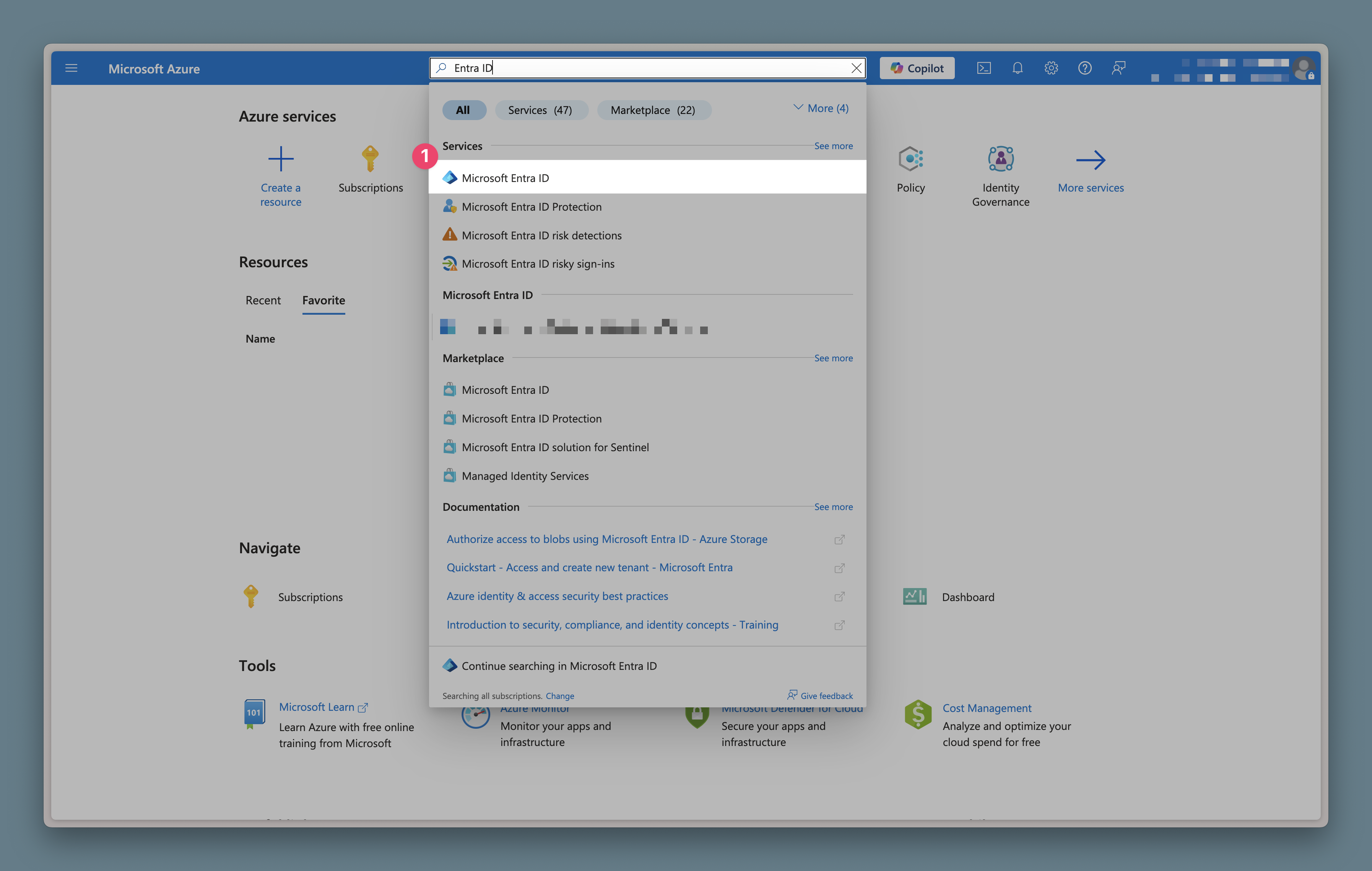
In the Azure portal, search for and open Microsoft Entra ID.
-
In Entra ID, open the Properties tab and toggle Access management for Azure resources to Yes, then click Save.
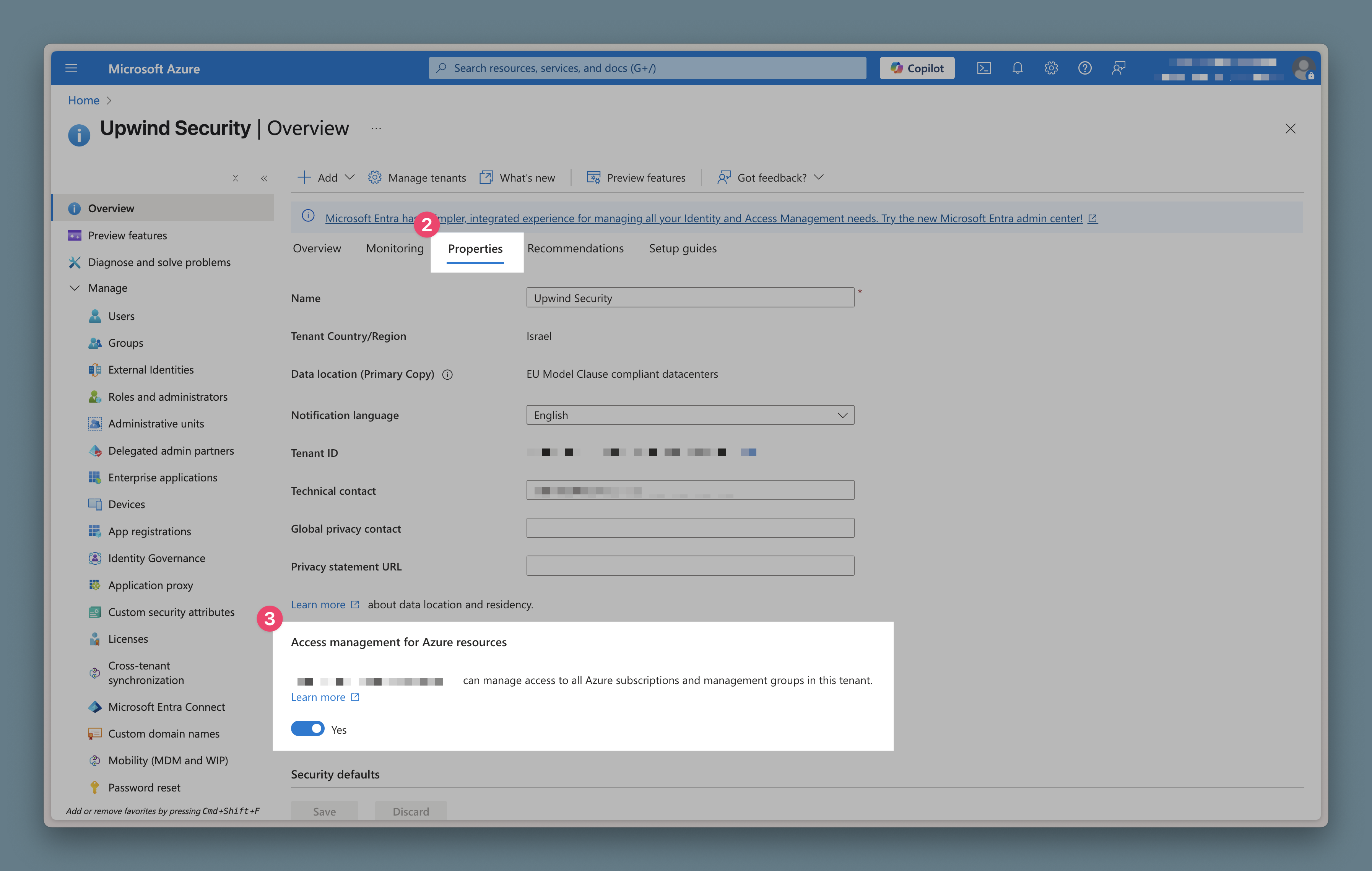
After 1-2 minutes, the root tenant management group becomes visible in the Azure portal under Management groups, and you can assign the roles required by the App Registration scenarios below.
5. App Registration for Upwind Integration
When using CI/CD pipelines, you typically have two separate App Registrations:
- Terraform Runner App Registration - The service principal that executes Terraform (your CI/CD identity)
- Upwind Integration App Registration - The service principal that Upwind will use to access your Azure resources
The scenarios below describe the permissions needed for the Terraform Runner and whether you need to pre-create the Upwind Integration App Registration or let Terraform create it. These scenarios are independent of your integration scope - you can use any scenario with full tenant, limited scope, or subscription-level integration.
Choose the scenario that matches your security requirements and Terraform runner permissions:
Scenario 1: Terraform Creates App Registration (Full Automation)
Terraform will create the Upwind App Registration during deployment. This scenario works with any integration scope (full tenant, limited scope, or specific subscriptions).
Prerequisites:
- Terraform runner must have Cloud Application Administrator or Application Administrator Entra role at the tenant level
- Terraform runner must have Owner role over the scope you want to onboard (tenant root management group, management groups, or subscriptions)
Steps to assign the Entra role to your Terraform runner:
- Navigate to your Azure tenant in the portal
- Click Roles and administrators in the sidebar
- Search for "Cloud Application Administrator" (or "Application Administrator") and click it
- Click Add assignments
- Search for your Terraform runner App Registration by name and select it
- Verify that your App Registration is listed in the role assignments
Verification using Azure CLI:
SPID=$(az ad sp show --id <appId> --query id -o tsv)
az rest --method GET --url "https://graph.microsoft.com/v1.0/servicePrincipals/${SPID}/memberOf"
Required Terraform variables:
# No additional variables needed - Terraform will create the app registration
This Entra role assignment is applied at the tenant level in the Azure portal's "Roles and administrators" section, not within the App Registration's own settings.
Scenario 2: Pre-Created App Registration with Directory.Read.All
You create the Upwind App Registration upfront, and the Terraform runner has Directory.Read.All Microsoft Graph permission to look up the service principal. This scenario works with any integration scope (full tenant, limited scope, or specific subscriptions).
Prerequisites:
- Terraform runner must have Directory.Read.All Microsoft Graph API permission
- Terraform runner must have Owner role over the scope you want to onboard (tenant root management group, management groups, or subscriptions)
Steps to create the Upwind App Registration:
-
Create App Registration: In Azure Portal, navigate to Entra ID → App registrations → New registration
- Name:
upwind-integration(or your preferred name) - Supported account types: Accounts in this organizational directory only
- Click Register
- Name:
-
Create Client Secret:
- In the app registration, go to Certificates & secrets → New client secret
- Add a description and set expiration, ideally 24 months.
- Copy the secret value - you'll need this for Terraform
-
Note the Application (client) ID: Copy this from the app registration overview page
Required Terraform variables:
azure_application_client_id     = "your-pre-created-app-client-id"
azure_application_client_secret = "your-pre-created-app-client-secret"
The Terraform runner doesn't need Cloud Application Administrator role, only Directory.Read.All to look up the service principal.
Scenario 3: Pre-Created App Registration without Graph Permissions (Most Restrictive)
You create the Upwind App Registration upfront, and the Terraform runner has no Microsoft Graph permissions. You must provide the service principal's object ID manually. This scenario works with any integration scope (full tenant, limited scope, or specific subscriptions).
Prerequisites:
- Terraform runner has no Microsoft Graph permissions required
- Terraform runner must have Owner role over the scope you want to onboard (tenant root management group, management groups, or subscriptions)
Steps to create the Upwind App Registration:
-
Create App Registration: In Azure Portal, navigate to Entra ID → App registrations → New registration
- Name:
upwind-integration(or your preferred name) - Supported account types: Accounts in this organizational directory only
- Click Register
- Name:
-
Create Client Secret:
- In the app registration, go to Certificates & secrets → New client secret
- Add a description and set expiration, ideally 24 months.
- Copy the secret value - you'll need this for Terraform
-
Note the Application (client) ID: Copy this from the app registration overview page
-
Get the Service Principal Object ID:
- Navigate to Entra ID → Enterprise applications
- Search for your app registration name
- Click on it and copy the Object ID (not the Application ID)
- Alternatively, use Azure CLI:
az ad sp show --id <application-client-id> --query id -o tsv
-
Assign RBAC Permissions:
- Navigate to the scope you want to integrate (Management Group or Subscriptions)
- Go to Access control (IAM) → Add role assignment
- Assign Reader role to your app registration
Required Terraform variables:
azure_application_client_id           = "your-pre-created-app-client-id"
azure_application_client_secret       = "your-pre-created-app-client-secret"
azure_application_object_id           = "your-service-principal-object-id"
This scenario has the lowest prerequisites - the Terraform runner needs no Microsoft Graph permissions at all. Ideal for highly restricted CI/CD environments.
Troubleshooting
If you encounter issues during deployment or operation, consult the Troubleshooting guide for solutions and best practices.