Instructions
Overview
This article outlines the steps to integrate your Oracle Cloud environment with Upwind. Oracle Cloud integration is available at the tenancy level only, providing comprehensive coverage across all compartments.
Integration steps
Connect your Oracle Cloud tenancy:
- Tenancy
The integration of the Oracle Cloud Tenancy consists of the following steps:
- Step 1: Selecting the Oracle Cloud Tenancy and providing configuration details.
- Step 2: Deploying the Terraform module to create the necessary resources.
- Step 2.5: Generating a Workload Identity Federation (WIF) configuration to allow Upwind to access your Oracle Cloud Tenancy.
- Step 3: Defining the scope of resources to scan.
- Log in to the Upwind Management Console .
- Select the + (plus) symbol at the top of the screen and select Connect cloud account.
- Choose Oracle Cloud Infrastructure, and from there Connect Oracle Cloud Tenancy.
Oracle Cloud integration currently supports tenancy-level onboarding only. Compartment-specific onboarding is not available. Multiple tenancies can be onboarded by repeating the process.
Step 1: Onboard your Oracle Cloud Tenancy
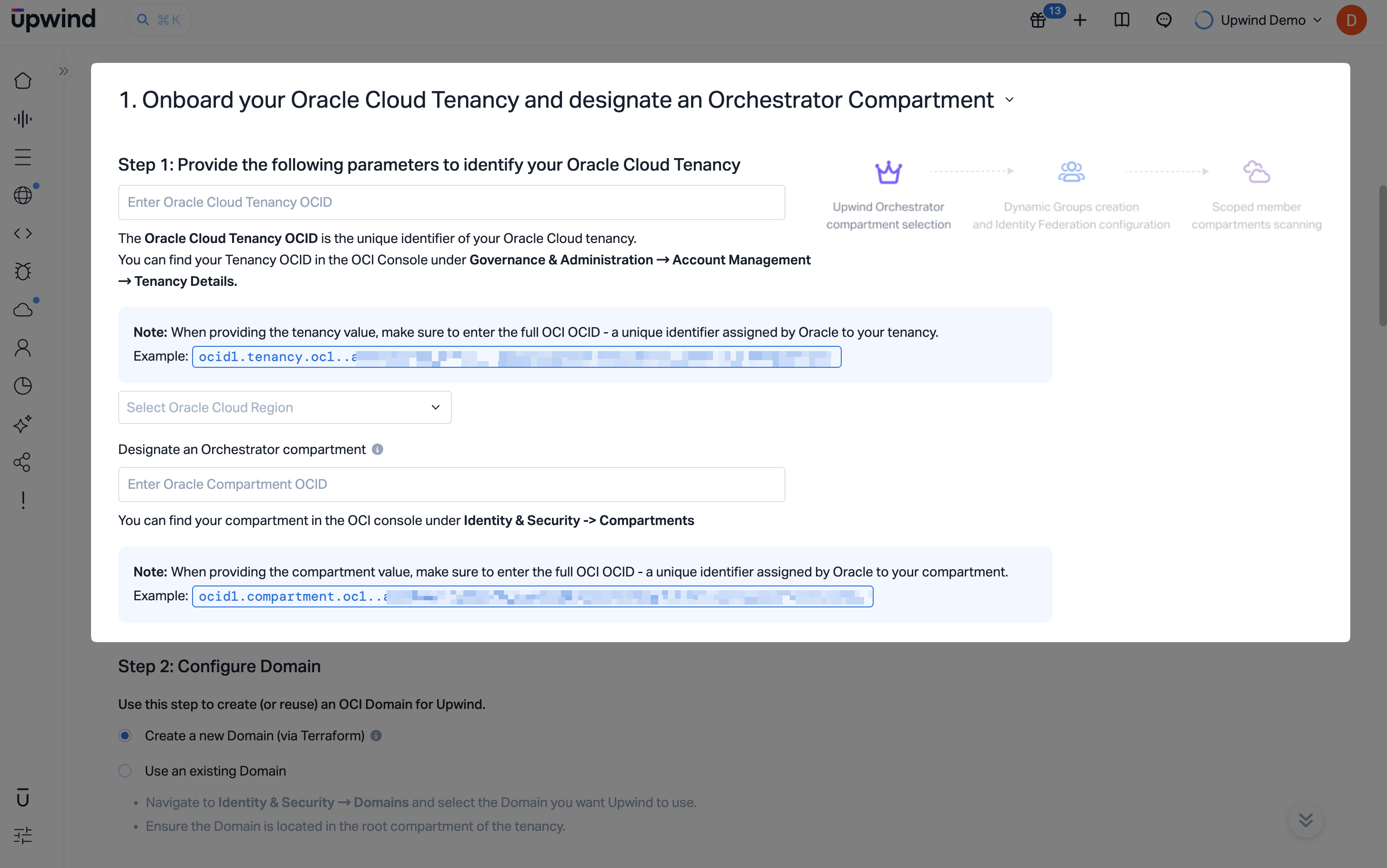
In this step, you will provide key identifiers from your Oracle Cloud environment and register them in the Upwind Management Console.
Step 1.1: Provide the parameters to identify your Oracle Cloud Tenancy
- Sign in to the Oracle Cloud Console using an account with tenancy-level access.
- Navigate to Administration → Tenancy Details.
- Copy your Tenancy OCID – this is the unique identifier for your Oracle Cloud tenancy.
- Note your Home Region – this is the primary region for your tenancy.
- Copy your Orchestrator Compartment OCID – this is the unique identifier for the compartment that will be used to deploy the Cloud Scanner infrastructure.
- Paste these values into the corresponding fields in the Upwind Console.
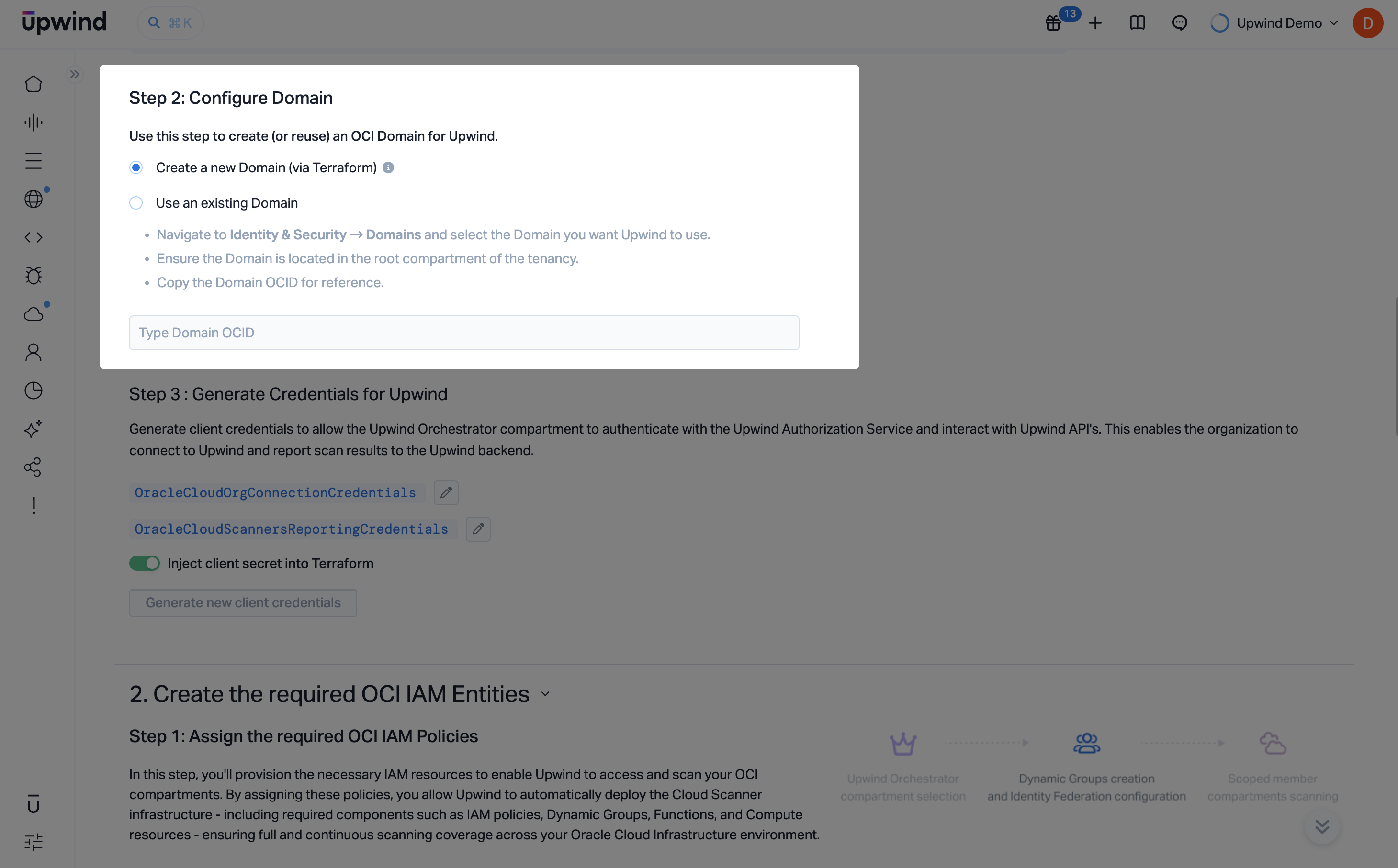
Step 1.2: Configure Domain
- By default, the Terraform module will create a new domain in your Oracle Cloud tenancy.
- You can choose to use an existing domain by providing the domain OCID.
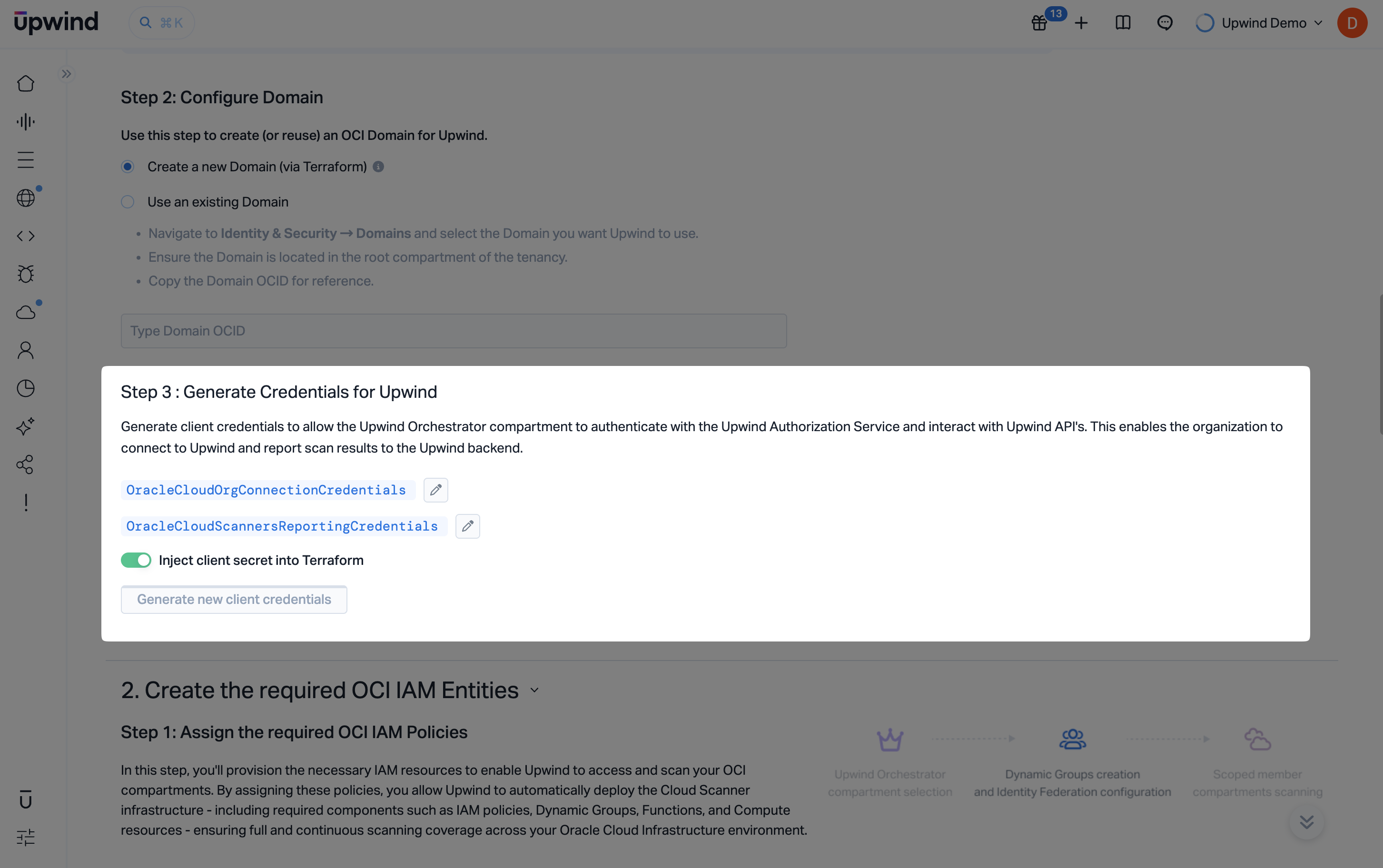
Step 1.3: Generate Credentials for Upwind
In this step, you will generate the client credentials that allow your Oracle Cloud tenancy to authenticate with the Upwind Authorization Service and interact with Upwind APIs. These credentials are required to connect your Oracle Cloud tenancy to Upwind and enable secure reporting and scanning.
You will generate two sets of credentials:
-
OracleCloudTenancyConnectionCredentials- used to authenticate and identify resources within your Oracle Cloud tenancy. These credentials are essential for allowing Upwind to discover, connect, and scan your Oracle Cloud resources. -
OracleCloudScannersReportingCredentials- used to securely report scan results from your Oracle Cloud tenancy back to Upwind. They enable continuous visibility by allowing Upwind to receive findings, metadata, and status updates from your scanned resources.
Click "Generate new client credentials" to create both sets of credentials. Once generated, save them securely as they will be used in later steps to complete the onboarding process
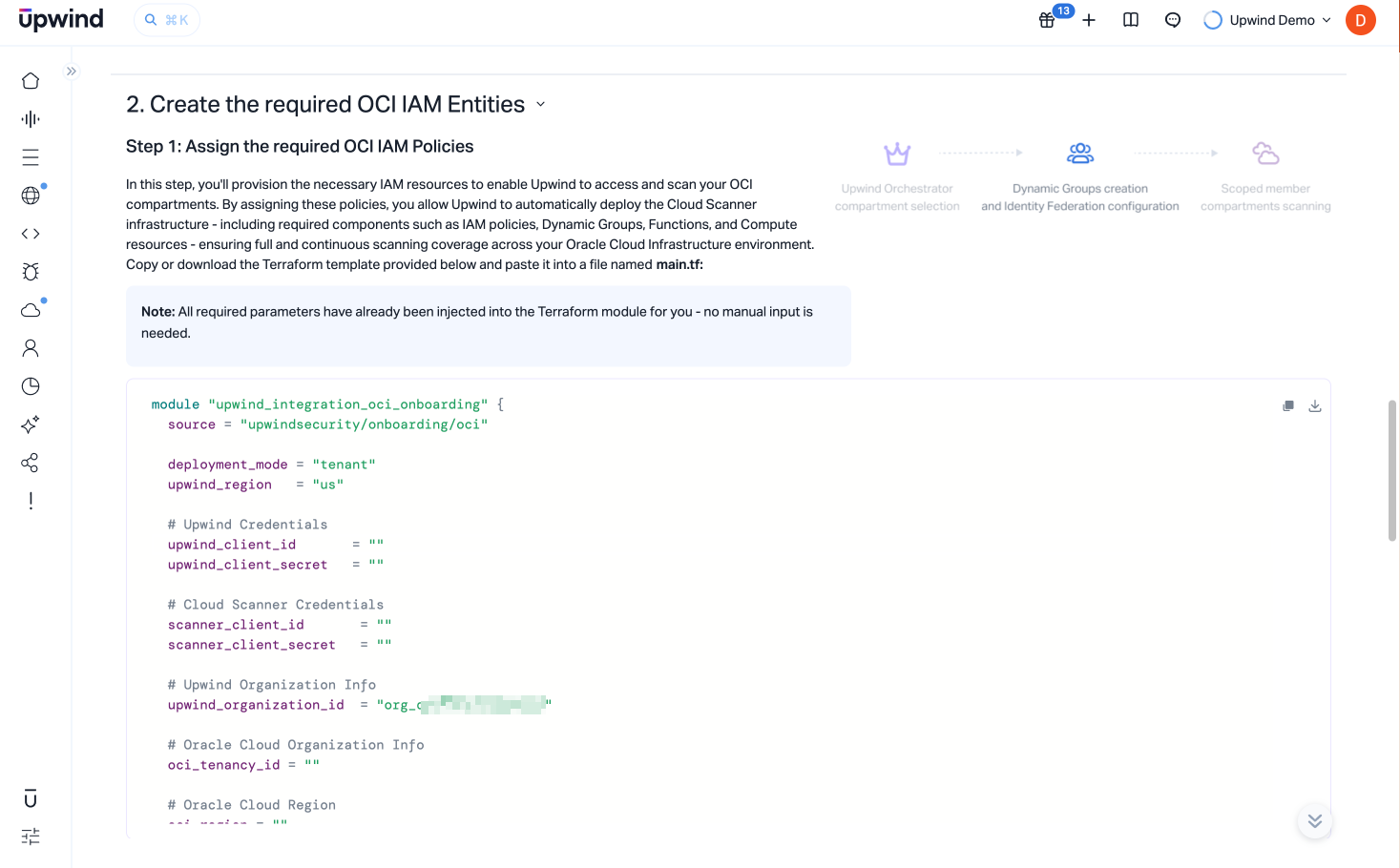
Step 2: Deploy the Terraform module to provision the necessary resources
In this step, you'll provision the necessary resources to enable Upwind to access and scan your Oracle Cloud tenancy.
The module will deploy all required resources and configure authentication via Workload Identity Federation. This will grant access to your Oracle Cloud environment specifically from Upwind's AWS environment.
This will then allow Upwind to automatically deploy the Cloud Scanner infrastructure – including required components like IAM roles, service principals, and compute resources – ensuring full and continuous scanning coverage across your environment.
All required parameters have already been injected into the Terraform module for you – no manual input is needed.
Step 2.1: Configure the Terraform module
-
Before proceeding, review all the settings and parameters to ensure the configuration settings are tailored to your environment.
-
Create a new directory for your Terraform project and navigate to it in your terminal.
-
Create a new file named
main.tfto hold the Terraform configuration. -
Copy the code snippet from the Terraform setup section and paste it into
main.tf.main.tfmodule "upwind_integration_oci_onboarding" {
source = "upwindsecurity/onboarding/oci"
deployment_mode = "tenant"
upwind_region = "us"
# Upwind Credentials
upwind_client_id = "<client-id>"
upwind_client_secret = "<client-secret>"
# Cloud Scanner Credentials
scanner_client_id = "<scanner-client-id>"
scanner_client_secret = "<scanner-client-secret>"
# Upwind Organization Info
upwind_organization_id = "<your-upwind-organization-id>"
# Oracle Cloud Organization Info
oci_tenancy_id = "<tenancy-id>"
# Oracle Cloud Region
oci_region = "<oci-region>"
# Compartment to act as the orchestrator
upwind_orchestrator_compartment = "<orchestrator-compartment-id>"
# Enable or disable Cloud Scanners
enable_dspm_scanning = true
enable_cloudscanners = true
resource_suffix = "<suffix - auto generated>"
}
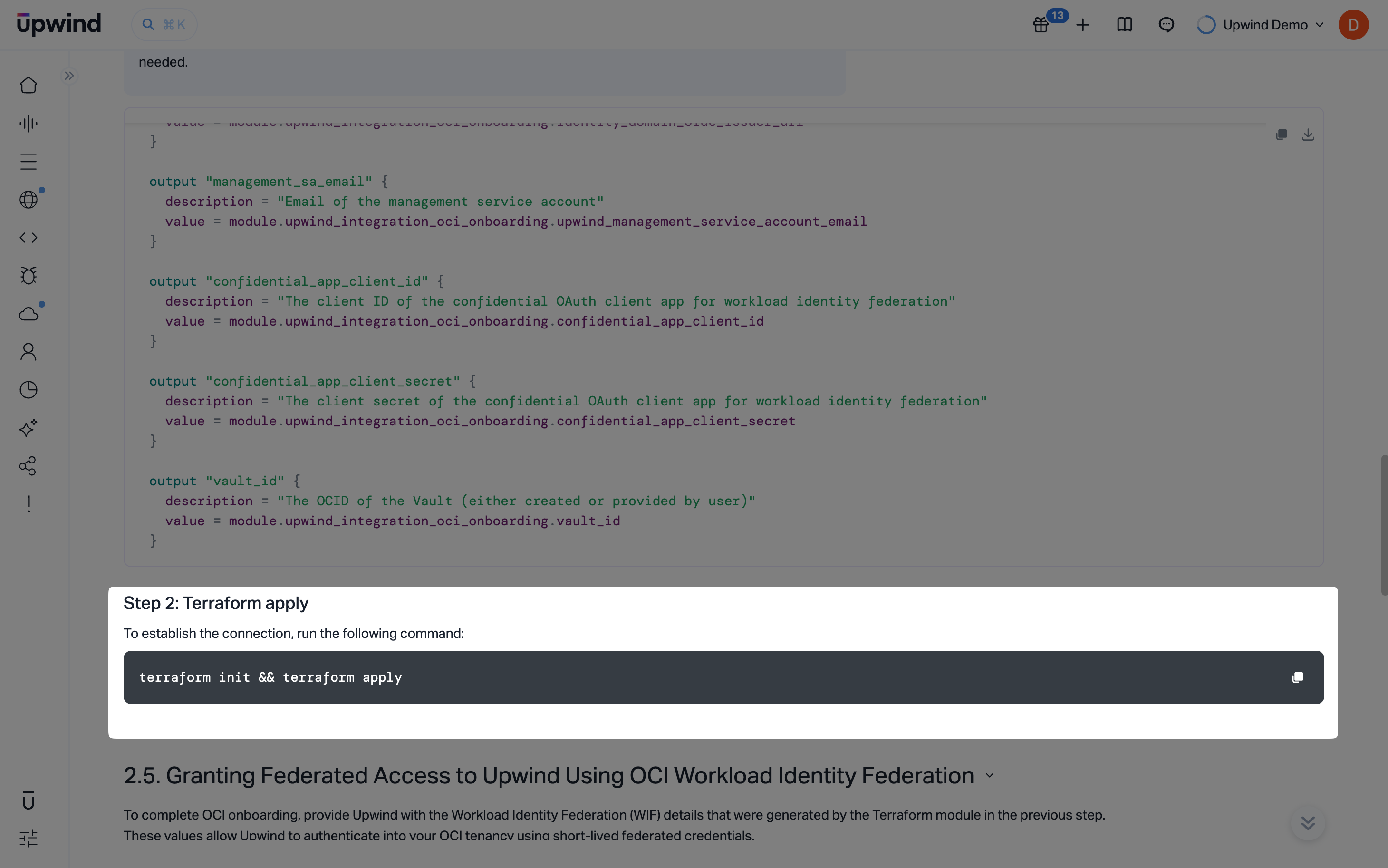
output "identity_domain_oidc_issuer_url" {
description = "OIDC issuer URL for the Identity Domain (for AWS IAM OIDC provider configuration)"
value = module.upwind_integration_oci_onboarding.identity_domain_oidc_issuer_url
}
output "management_sa_email" {
description = "Email of the management service account"
value = module.upwind_integration_oci_onboarding.upwind_management_service_account_email
}
output "confidential_app_client_id" {
description = "The client ID of the confidential OAuth client app for workload identity federation"
value = module.upwind_integration_oci_onboarding.confidential_app_client_id
}
output "confidential_app_client_secret" {
description = "The client secret of the confidential OAuth client app for workload identity federation"
value = module.upwind_integration_oci_onboarding.confidential_app_client_secret
}
output "vault_id" {
description = "The OCID of the Vault (either created or provided by user)"
value = module.upwind_integration_oci_onboarding.vault_id
}
It may be necessary to add sensitive = true to the outputs above if Terraform produces an error or warning. The values can then be retrieved using terraform output -raw.]
Step 2.2: Terraform apply
The module can be run manually using terraform init && terraform apply, however, it was designed with the expectation that it will be integrated into an Infrastructure-as-Code (IaC) tool such as Terragrunt or a CI/CD pipeline.
This makes it easier to deploy the module consistently across your Oracle Cloud tenancy.
Ensure to inject secret values using the appropriate method for your infrastructure-as-code methodology.
Once the terraform apply command has successfully executed, the connection should be established within a few moments.
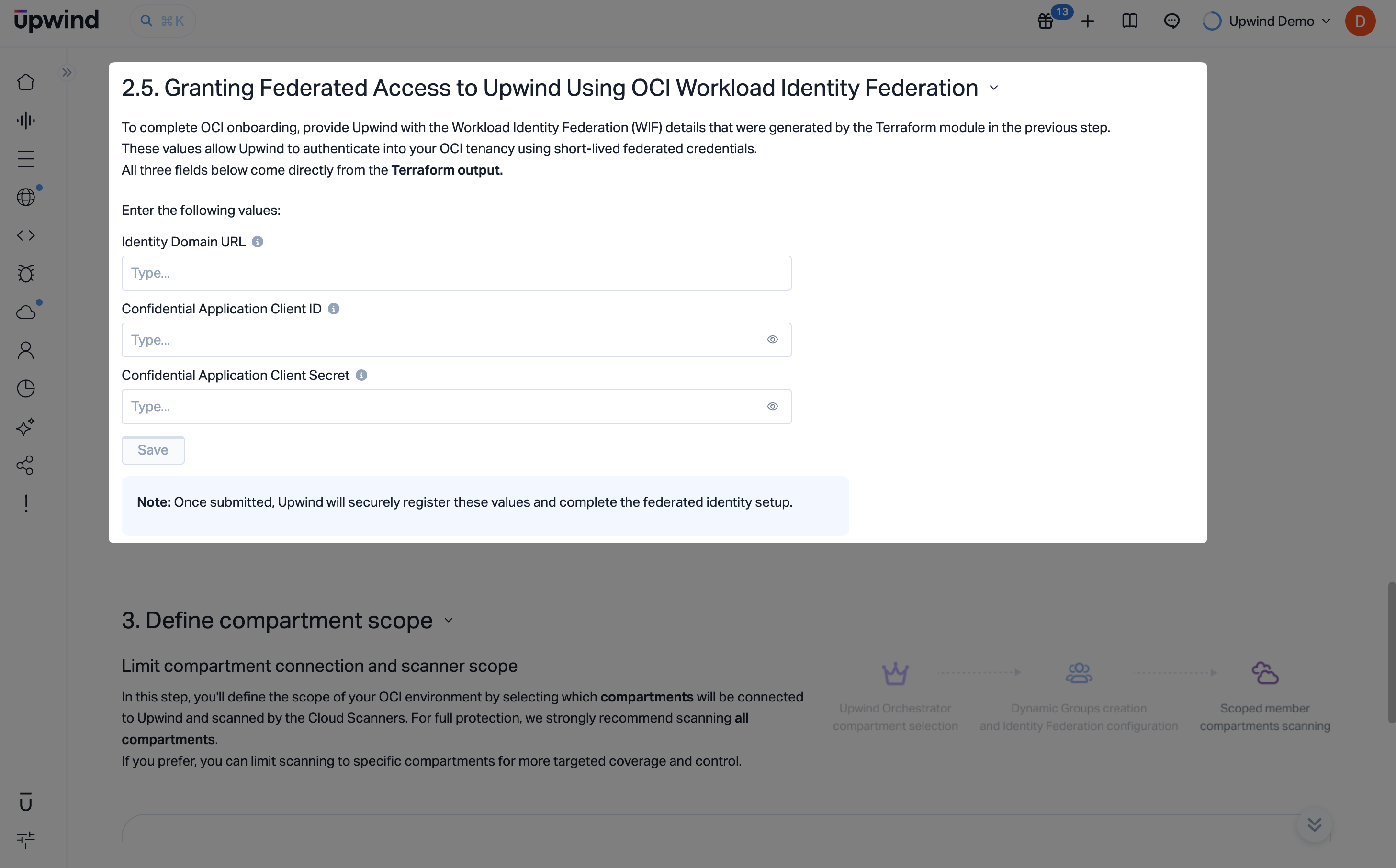
Step 2.5: Granting Federated Access to Upwind using OCI Workload Identity Federation
In this step, you will provide the configuration values that allow Upwind to securely access your Oracle Cloud Tenancy. This configuration is essential for enabling Upwind to authenticate and interact with your Oracle Cloud resources without needing to manage long-lived credentials.
Ensure your oci CLI is up to date. Older versions may not support all federation features required for this integration.
To configure WIF you will need to provide the following configuration values:
- Identity Domain URL: outputted by Terraform as
identity_domain_oidc_issuer_url. - Confidential App Client ID: outputted by Terraform as
confidential_app_client_id. - Confidential App Client Secret: outputted by Terraform as
confidential_app_client_secret.
Following this, you can hit 'SAVE' to complete the onboarding process.
Step 3: Define Resource Scope
The final step of the onboarding process allows you to define the scope for your Oracle Cloud tenancy — determining which resources and compartments should be scanned.
-
This view displays your tenancy structure and compartments, allowing you to choose which resources should be audited using Cloud APIs or scanned using Upwind Cloud Scanners.
-
Enable
Cloud APIto grant general access to the Upwind API. -
Enable
Cloud Scannerto deploy the Upwind Cloud Scanner in your tenancy.Scope DependencyCloud Scanner scopes are dependent on the Cloud API scope. If you enable the Cloud Scanner scope, the Cloud API scope must also be enabled.
Scope DelaysIt may take up to 30 minutes for the scope to be fully propagated to the Cloud Scanner.
-
-
Enable Auto-Connect for New Compartments - when enabled, all newly created compartments under the tenancy will be automatically connected to Upwind. These compartments will be granted Cloud API access and scanned by the Cloud Scanner by default, ensuring continuous visibility and protection without further setup.
-
Test Connectivity by clicking the Test & Save button. This will store the scope settings and check the connection between Upwind and the Oracle Cloud tenancy. If successful, you will see a success message.
Verify Integration Status
After successful connection:
- The integration status will show as Active.
- Upwind will begin an initial full scan of your tenancy.
- Resources will be discovered and inventoried automatically.
- Initial discovery typically takes 30-60 minutes depending on tenancy size.
- You can monitor progress in the Inventory section.
You're now fully connected to Upwind and protected across your entire Oracle Cloud tenancy.
Troubleshooting
If you encounter issues during deployment or operation, consult our troubleshooting guide for solutions and best practices.
Common Issues
Connection Test Failed
- Verify the identity provider is correctly configured.
- Ensure the federation policy is attached to the correct group.
- Verify the trust relationship is properly configured.
- Check that the service principal is in the correct group.
- Verify the tenancy OCID and home region are correct.
Permission Denied Errors
- Verify policies are created at the tenancy (root compartment) level.
- Ensure all four policy statements are present.
- Check that the group name in policies matches exactly.
- Confirm the service principal is added to the group.
No Resources Discovered
- Wait for the initial scan to complete (up to 60 minutes).
- Verify the service principal has the correct policies.
- Check that resources exist in your tenancy.
- Ensure compartments are not restricted by policies.
Federation Issues
- Verify the identity provider configuration matches Upwind's AWS account details.
- Ensure the external ID is correctly copied from Upwind Console.
- Check that the federation policy allows access from federated users.
- Verify the session duration is set appropriately (minimum 3600 seconds).
- Confirm the trust relationship JSON is properly formatted.
For additional assistance, contact Upwind support.